Variations in the VISCA protocol

Nearly three years ago, I posted about some fun I’d been having with VISCA using C#. As a reminder, VISCA is a camera control protocol, originally used over dedicated serial ports, but more recently over IP.

Until this week, all the cameras I’d worked with were very similar – PTZOptics, Minrray and ZowieTek all produce hardware which at least gives the impression of coming out of the same factory, with the same “base” firmware that’s then augmented by the specific company. I’ve seen differences in the past, but they’re largely similar in terms of VISCA implementation.

This week, my Obsbot Tail Air arrived. I’ve been looking at Obsbot for a while, attracted by the small form factor, reasonable price, and fun object tracking functionality. However, earlier models didn’t have the combination of the two features I was most interested: VISCA and NDI support. The Tail Air has both. I bought it in the hope that I could integrate it with my church A/V system (At Your Service) – allowing for auto-tracking and portability (as the Tail Air is battery powered and wireless).

The NDI integration worked flawlessly from the start. Admittedly the Tail Air takes a lot of bandwidth by default – I’ve turned the bitrate down to “low” in order to get to a reasonable level (which still looks great). But fundamentally it just worked.

VISCA was trickier – hence this blog post. First, there wasn’t documentation on whether it was using TCP or UDP, or which port it was listening on. To be clear, the product’s only just launched, and I’m sure the documentation will improve over time. Fortunately, there was information on the Facebook group, suggesting that other people had got some VISCA clients working with UDP port 52381.

To start with, that was going to cause a bit of a problem as my implementation only supported TCP. However, it was pretty easy to change it to support UDP; the code had already been written to isolate the transport from other aspects, at least to some extent. Fortunately, the PTZOptics camera supports both TCP and UDP, so it was easy to test the UDP implementation that way.

Unfortunately, the implementation that worked for my PTZOptics camera entirely failed for the Tail Air. After doing a bit of digging, I found out why.

It turns out that there are two variants of VISCA over IP – what I’ve called “raw” and “encapsulated”, but that’s definitely not official terminology. In the “raw” version, each message is between 3 and 16 bytes:

  • The first byte designates the type of message, the source and destination devices, and normal/broadcast mode.
  • There are 1-14 “payload” bytes
  • The last byte is always 0xff (and no other byte ever should be)

The “encapsulated” version uses the same data part as the “raw” version, but with an additional header of 8 bytes:

  • The first two bytes indicate the message “type” (command, inquiry, reply, device setting, control, control reply)
  • The next two bytes indicate the length of the data to follow (even though it’s never more than 16 bytes…)
  • The final four header bytes indicate a sequence number (initially 00 00 00 00, then 00 00 00 01 etc)

So for example, the raw command for “get power status” is 81-09-04-00-ff.

The encapsulated command for the same request (with a sequence number of 00-00-00-00) is 01-10-00-05-00-00-00-00-81-09-04-00-FF.

Once I’d figured that out (and hand-crafted the “get power status” packet to check that I was on the right lines), the rest was fairly straightforward. My VISCA library now allows the use of TCP or UDP, and raw or encapsulated format.

The Tail Air still doesn’t behave quite the same as my PTZOptics camera in terms of VISCA support, mind you:

  • It ignores power standby/on commands.
  • The “set pan/tilt” command ignores the specified tilt speed, using the pan speed for both pan and tilt.
  • The “set pan/tilt” command replies that it’s completed immediately – instead of waiting until the camera has actually finished moving.
  • The pan/tilt and zoom limits are (understandably) different.

Still, none of that should prevent fuller integration within At Your Service. I need to take account of the different pan/tilt/zoom limits within At Your Service, allowing them to be configurable, but after that I should have a reasonably workable system… as well as a handy little test camera to take for demo purposes!

All the code changes can be seen in the CameraControl directory of my demo code GitHub repo.

The Tail Air is not the only new toy I’ve received this week… I’ve also taken delivery of an Allen & Heath CQ20B digital mixer, so I’ve been playing with that today as well, trying to work out how to integrate that into DigiMixer. I’m really hoping to get a chance to write some more blog posts on DigiMixer over the Christmas holidays… watch this space.

SSC Protocol

I’m aware that I haven’t been writing as many blog posts as I’d hoped to about DigiMixer. I expect the next big post to be a comparison of the various protocols that DigiMixer supports. (I’ve started a protocols directory in the GitHub repo, but there isn’t much there yet.) In the meantime, I wanted to mention a protocol that I just recently integrated… SSC.

SSC stands for “Sennheiser Sound Control” – it’s based on OSC (Open Sound Control), the binary protocol that I already use for controlling Behringer mixers and the RCF M-18. SSC is very similar to OSC in terms of its structure of path-like addresses to refer to values (e.g. “/device/identity/product”) but uses JSON as the representation. The addresses are represented via nested objects: to request a value you specify the null literal in the request, whereas to set a value you specify the new value. So for example, a request for a device’s product name, serial number and current time might look like this:

{
  "device": {
    "time": null,
    "identity" {
      "serial": null,
      "product": null
    }
  }
}

Not only is this nice and easy to work with, but it’s all documented. For example, the specification for the EW-DX EM 2 radio microphone receiver (which is the device I have) can be downloaded here. I can’t tell you how delightful it is to read a well-written specification before starting to write any integration code. There are a few aspects that it doesn’t cover in as much detail as I’d like (e.g. errors) but overall, it’s a joy.

Obviously a radio microphone receiver isn’t actually a mixer – while I could sort of squint and pretend it is (it’s got mutes and sound levels, after all) I haven’t done that… this is really for integration into At Your Service, so that I can alert the operator if microphone battery levels are running low. Given the relationship between OSC and SSC, however, it made sense to include it in the DigiMixer code base – even with tests for the abstraction I’ve created over the top. (No, having tests isn’t normally noteworthy – but my integration projects normally don’t include many tests as the big “unknown” is more what the device does rather than how the code behaves.)

Due to a combination of existing code in DigiMixer for handling “establish a client/server-like relationship over UDP”, the clear documentation, and my previous experience with OSC, I was able to get my new radio mic receiver integrated into At Your Service within a few hours. I’m sure I’ll want to tweak it over time – but overall, I’m really pleased at how easy it was to add this. I don’t expect to actually display the details to most users, but here they are for diagnostic purposes:

SSC details screenshot

And the status bar with just battery levels:

Battery levels screenshot

Onward and upward!

DigiMixer: Introduction to digital mixers

While I’m expecting this blog post series to cover a number of topics, the primary purpose is as a vehicle for discussing abstraction and what it can look like in real-world projects instead of the “toy” examples that are often shown in books and articles. While the DigiMixer project itself is still in some senses a toy project, I do intend to eventually include it within At Your Service (my church A/V system) and my aim is to examine the real problems that come with introducing abstraction.

In this post, I’ll cover the very basics of what we’re trying to achieve with DigiMixer: the most fundamental requirements of the project, along with the highest-level description on what a digital audio mixer can do (and some terminology around control surfaces). Each of the aspects described here will probably end up with a separate post going into far more detail, particularly highlighting the differences between different physical mixers.

Brief interlude: Mixing Station

When I wrote the introductory DigiMixer blog post I was unaware of any other projects attempting to provide a unified software user inferface to control multiple digital mixers. I then learned of Mixing Station – which does exactly that, in a cross-platform way.

I’ve been in touch with the author, who has been very helpful in terms of some of the protocol details, but is restricted in terms of what he can reveal due to NDAs. I haven’t yet explored the app in much depth, but it certainly seems comprehensive.

DigiMixer is in no way an attempt to compete with Mixing Station. The goal of DigiMixer is primarily education, with integration into At Your Service as a bonus. Mixing Station doesn’t really fit into either of those goals – and DigiMixer is unlikely to ever be polished enough to be a viable alternative for potential Mixing Station customers. If this blog post series whets your appetite for digital audio mixers, please look into Mixing Station as a control option.

What is a digital audio mixer?

I need to emphasize at this stage that I’m very much not an audio engineer. While I’ll try to use the right terminology as best I can, I may well make mistakes. Corrections in comments are welcome, and I’ll fix things where I can.

A digital audio mixer (or digital mixer for short from here onwards – if I ever need to refer to any kind of mixer other than an audio mixer, I’ll do so explicitly) is a hardware device which accepts a number of audio inputs, provides some processing capabilities, and then produces a number of audio outputs.

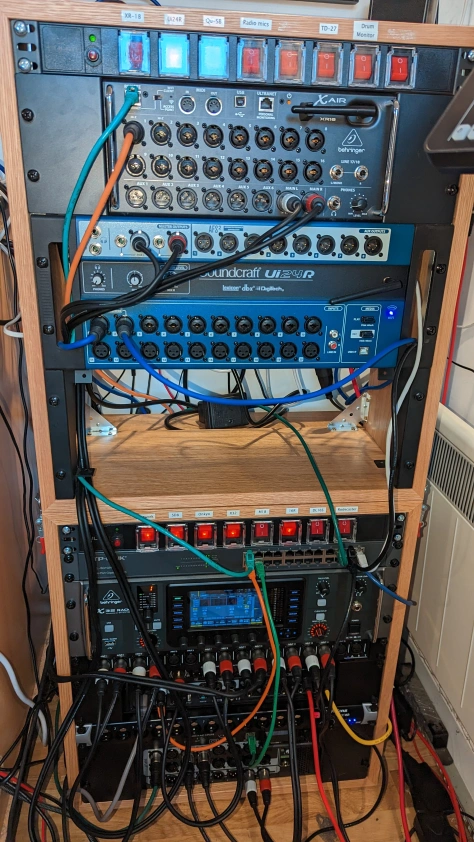
The “digital” aspect is about the audio processing side of things. There are digital mixers where every aspect of human/mixer interaction is still analogue via a physical control surface (described in more detail below). Many other digital mixers support a mixture of physical interaction and remote digital control (typically connected via USB or a network, with applications on a computer, tablet or phone). Some have almost no physical controls at all, relying on remote control for pretty much everything. This latter category is the one I’m most familiar with: my mixers are all installed in a rack, as shown below.

Rack containing digital mixers

My shed mixer rack, December 2022 – the gap in the middle is awaiting an Allen and Heath Qu-SB, on back-order.

The only mixer in the rack that provides significant physical control is the Behringer X-32 Rack, just below the network switch in the bottom rack. It has a central screen with buttons and knobs round the side – but even in this case, you wouldn’t want to use those controls much in a live situation. They’re more for set-up activities, in my view.

Most of the other mixers just have knobs for adjusting head-phone output and potentially main output. Everything else is controlled via the network or USB.

Control surfaces

Even though DigiMixer doesn’t have any physical controls (yet), the vocabulary I’ll use when describing it is intended to be consistent with that of physical control surfaces. Aside from the normal benefits of consistency and familiarity, this will help if and when I allow DigiMixer to integrate with dedicated control surfaces such as the X-Touch Mini, Monogram or Icon Platform M+.

Before getting into mixers, I wasn’t even aware of the term control surface but it appears to be ubiquitous – and useful to know when researching and shopping. I believe it’s also used for aircraft controls (presumably including flight simulators) and submarines.

While mixers often have control surfaces as part of the hardware, dedicated control surfaces (such as the ones listed above) are also available, primarily for integration with Digital Audio Workstations (DAWs) used for music recording and production. Personally I’ve always found DAWs to be utterly baffling, but I’m certainly not the target audience. (If I’d understood them well in 2020, they could potentially have saved me a lot of time when editing multiple tracks for the Tilehurst Methodist Church virtual choir items, but Audacity)

Faders

Faders are the physical equivalent to slider controls in software: linear controls which move along a fixed track. These are typically used to control volume/gain.

When you get past budget products, many control surfaces have motorised faders. These are effectively two-way controls: you can move them with your fingers to change the logical value, or if the logical value is changed in some other way, e.g. via a DAW, the fader will physically move to reflect that.

Faders generally do exactly what they say on the tin – and are surprisingly satisfying to use.

Buttons

For what sounds like an utterly trivial aspect of control, there are a few things to consider when it comes to physical buttons.

The first is whether they’re designed for state or for transition. The controls around the screen of the X-32 Rack mixer demonstrate this well:

There’s a set of four buttons (up/down/left/right) used to navigate within the user interface:

Plain navigation buttons

There are buttons to the side of the screen which control and indicate which “page” of the user interface is active:

Lit navigation buttons

There are on/off buttons such as for toggling muting, solo, and talkback. (I’ll talk more about those features later on… hopefully muting is at least reasonably straightforward.)

Lit toggle buttons

Secondly, a state-oriented button may act in a latching or momentary manner. A latching button toggles each time you press it: press it once to turn it on (whatever that means for the particular button), press it again to turn it off. A momentary button is only “on” while you’re pressing it. (This is also known as “push-to-talk” in some scenarios.) In some cases the same button can be configured to be “sometimes latching, sometimes momentary” – which can cause confusion if you’re not careful.

The most common use case for buttons on a mixer is for muting. On purely-physical mixers, mute buttons are usually toggle buttons where the state is indicated by whether the button is physically depressed or not (“in” or “out”). On the digital mixers I’ve used, most buttons (definitely including mutes) are semi-transparent rubberised buttons which are backlit – using light to represent state is much clearer at-a-glance than physical position. Where multiple buttons are placed close together, some control surfaces use different light colours to differentiate between them. I’ve seen just a few cases where a single physical button uses different light colours to give even more information.

Rotary encoders, aka knobs

While I’ve been trying to modify my informal use of terminology to be consistent with industry standards, I do find it hard to use “rotary encoder” for what everyone else I know would just call a knob. I suspect the reasons for the more convoluted term are a) to avoid sexual connotations; b) to sound more fancy.

Like faders, knobs are effectively continous controls (as opposed to the usually-binary nature of buttons) – it’s just that the movement is rotational instead of linear.

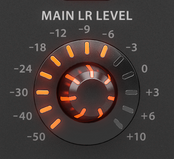
On older mixers, knobs are often limited in terms of the minimum and maximum rotation, with a line on the knob to indicate the position. This style is still used for some knobs on modern control surfaces, but others can be turned infinitely in either direction, reporting changes to the relevant software incrementally rather than in terms of absolute position. Lighting either inside the knob itself or around it is often used to provide information about the logical “position” of the knob in this case.

Lit volume knob

Some knobs also act as buttons, although I personally find pushing-and-twisting to be quite awkward, physically.

Jog wheel / shuttle dial

I haven’t actually seen jog wheels on physical mixers, but they’re frequently present on separate control surfaces, typically for use with DAWs. They’re large rotational wheels (significantly larger than knobs); some spring back to a central position after being released, whereas others are more passive. In DAWs they’re often used for time control, scrolling backward and forward through pieces of audio.

I mention jog wheels only as a matter of completeness; they’re not part of the abstraction I need to represent in DigiMixer.

Meters

Meters aren’t really controls as such, but they’re a crucial part of the humn/machine interface on mixers. They’re used to represent amounts of signal at some stage of processing (e.g. the input for a microphone channel, or the output going to a speaker). In older mixers a meter might consist of several small lights in a vertical line, where a higher level of signal leads to a larger number of lights being lit (starting at the bottom). Sometimes meters are a single color (and if so, it’s usually green); other meters go from mostly green to yellow near the top to red at the very top to warn the user when the signal is clipping.

Meters sometimes have a peak indicator, showing the maximum signal level over some short-ish period of time (a second or so).

How are digital mixers used?

This is where I’m on particularly shaky ground. My primary use case for a mixer is in church, and that sort of “live” setup can probably be lumped in with bands doing live gigs (using their own mixers), along with pubs and bars with occasional live sound requirements (where the pub/bar owns and operates the equipment, with guest talent or maybe just someone announcing quiz questions etc). Here, the audio output is heard live, so the mixing needs to be “right” in the moment.

Separately, mixers are used in studio setups for recording music, whether that’s a professional recording studio for bands etc or home use. This use case is much more likely to use a DAW afterwards for polishing – so a lot of the task is simply to get each audio track recorded separately with as little interference as possible. A mixer can be used as a way of then doing the post-processing (equalizing, compression, filters, effects etc); I don’t know enough about the field to know whether that’s common or whether it’s usually just done in software on a regular computer.

Focusing on the first scenario, there are two distinct phases:

  • Configuring the mixer as far as possible beforehand
  • Making adjustments on-the-fly in response to what’s happening in the room

The on-the-fly adjustments (at least for a rank amateur such as myself) are:

  • Muting and unmuting individual input channels
  • Adjusting the volume of individual input/output combinations (e.g. turning up one microphone’s output for the portion of our church congregation on Zoom, while leaving it alone for the in-building congregation)
  • Adjusting the overall output volumes separately

What is DigiMixer going to support?

Selfishly, DigiMixer is going to support my use case, and very little else. Even within “stuff I do”, I’m not aiming to support the first phase where the mixer is configured. This doesn’t need any integration into At Your Service – if multiple churches each with their own mixer each have a different mixer model, that’s fine… the relevant tech person at the church can set the mixer up with the app that comes with the mixer. If they want to add some reverb, or add a “stereo to mono” effect (which we have at Tilehurst Methodist Church) or whatever, that doesn’t need to be part of what’s controlled in the “live” second phase.

This vastly reduces the level of detail in the abstraction. I’ve gone into a bit more detail in the section below to give more of an idea of the amount of work I’m avoiding, but what we do need in DigiMixer is:

  • Whether the mixer is currently connected
  • Input and output channel configuration (how many, names, mono vs stereo)
  • Muting for inputs and outputs
  • Meters for inputs and outputs
  • Faders for input/output combinations
  • Faders for overall outputs

What is DigiMixer not going to support?

I have a little experience in trying to do “full fidelity” (or close-to full fidelity) companion apps – my V-Drum Explorer app attempts to enable every aspect of the drum kit to be configured, which requires knowledge of every aspect of the data model. In the case of Roland V-Drums, there’s often quite a lot of documentation which really helps… I haven’t seen any digital mixers with that level of official documentation. (The X32 has some great unofficial documentation thanks to Patrick-Gilles Maillot, but it’s still not quite the same.)

Digital mixers have a lot of settings to consider beyond what DigiMixer represents. It’s worth running through them briefly just to get more of an idea of the functionality that digital mixers provide.

Channel input settings

Each input channel has multiple settings, which can depend on the input source (analog, USB, network etc). Common settings for analog channels are:

  • Gain: the amount of pre-amp gain to apply to the input before any other signal processing. This is entirely separate from the input channel’s fader. (As a side-note, the number of places you effectively control the volume of a signal as it makes its way through the system can get a little silly.)
  • Phantom power: whether the mixer should provide 48v phantom power to the physical input. This is usually used to power condenser microphones.
  • Polarity: whether to invert the phase of the signal
  • Delay: a customizable delay to the input, used to synchronize sound from sources with different natural delays

“Standard” signal processing

Most mixers allow very common signal processing to apply to each input channel individually:

  • A gate reduces noise by effectively muting a channel completely when the signal is below a certain threshold – but with significantly more subtlety. A gate typically has threshold, attack, release and hold parameters.
  • A compressor reduces the dynamic range of sound, boosting quiet sounds and taming loud ones. (I find it interesting that this is in direct contrast to high dynamic range features in video processing, where you want to maximize the range.)
  • An equalizer adjusts the volume of different frequency bands.

Effects (FX) processing

Digital mixers generally provide a fixed set of FX “slots”, allowing the user to choose effects such as reverb, chorus, flanger, de-esser, additional equalization and others. A single mixer can offer many, many effects (multiple reverbs, multiple choruss etc).

Not only does each effect option have its own parameters, but there are multiple ways of applying the effect, via side-chaining or as an insert. Frankly, it gets complicated really quickly – multiple input channels can send varying amounts of signal to an FX channel, which processes the combination and then contributes to regular outputs (again, by potentially varying amounts).

I’m sure it all makes sense really, but as a novice audio user it makes my head hurt. Fortunately I haven’t had to do much with effects so far.

Routing

Routing refers to how different signals are routed through the mixer. In a very simple mixer without any routing options, you might have (say) 4 input sockets and 2 output sockets. Adjusting “input 1” (e.g. with the first fader) would always adjust how the sound coming through the first input socket is processed. In digital mixers, things tend to get much more complicated, really quickly.

Let’s take my X32 Rack for example. It has:

  • 16 XLR input sockets for the 16 regular “local” inputs
  • 6 aux inputs (1/4″ jack and RCA)
  • A talkback input socket
  • A USB socket used for media files (both to play and record)
  • 8 XLR main output sockets
  • 6 aux outputs (1/4″ jack and RCA)
  • A headphone socket
  • Two AES50 ethernet sockets for audio-over-ethernet, each of which can have up to 48 inputs and 48 outputs. (The X32 can’t handle quite that many inputs and outputs, but it can work with AES50 devices which do, and address channels 1-48 on them.)
  • An ultranet monitoring ethernet socket (proprietary audio-over-ethernet to Behringer monitors)
  • A “card” which supports different options – I have the USB audio interface card, but other options are available.

(These are just the sockets for audio; there are additional ethernet and MIDI sockets for control.)

How should this vast set of inputs be mapped to the 32 (+8 FX) usable input channels? How should 16 output channels be mapped to the vast set of outputs? It’s worth noting that there’s an asymmetry here: it doesn’t make sense to have multiple configured sources for a single input channel, but it does make sense to send the same output (e.g. “output channel 1”) to multiple physical devices.

As an example, in my setup:

  • Input channels 1-16 map to the 16 local XLR input sockets on the rack
  • Input channels 17-24 map to input channels 1-8 on the first AES50 port, which is connected to a Behringer SD8 stage box (8 inputs, 8 outputs)
  • Input channels 25-32 map to channels 1-8 via the USB port
  • Output channels 1-8 map to the local output XLR sockets and to the first AES50 port’s outputs 1-8 and to channels 9-16 via the USB port
  • Output channels 9-16 map to channels 1-8 via the USB port (yes, that sounds a little backwards, but it happens to simplify using the microphones)
  • The input channels 1-8 from the first AES50 port are also mapped to output channels 17-24 on the USB port
  • The output channels 1-8 on the USB port are also mapped to input channels 25-32 on the USB port.

Oh, and there are other options like having an oscillator temporarily take over an output port. This is usually used for testing hardware connections, although I’ve used this for reverse engineering protocols – a steady, adjustable output is really useful. Then there are options for where talkback should go, how the aux inputs and outputs are used, and a whole section for “user in” and “user out” which I don’t understand at all.

All of this is tremendously powerful and flexible – but somewhat overwhelming to start with, and the details are different for every mixer.

General settings

Each digital mixer has its own range of settings, such as:

  • The name of the mixer (so you can tell which is which if you have multiple mixers)
  • Network settings
  • Sample rates
  • MIDI settings
  • Link preferences (for stereo linked channels)
  • User interface preferences

That’s just a small sample of what’s available in the X32 – there are hundreds of settings, many cryptically described (at least to a newcomer), and radically different across mixers.

Conclusion

When I started writing this blog post, I intended it to mostly focus on the abstraction I’ll be implementing in DigiMixer… but it sort of took on a life of its own as I started describing different aspects of digital mixers.

In some ways, that’s a good example of why abstractions are required. If I tried to describe everything about even one of the mixers I’ve got, that would be a very long post indeed. An abstraction aims to move away from the detail, to focus on the fundamental aspects that all the mixers have in common.

This series of blog posts won’t be entirely about abstractions, even though that’s the primary aim. I’ll go into some comparisons of the network protocols supported by the various mixers, and particular coding patterns too.

There’s already quite a bit of DigiMixer code in my democode repository – although it’s in varying states of production readiness, let’s say. I expect to tidy it up significantly over time.

I’m not sure what I’ll write about next in terms of DigiMixer, but I hope the project be as interesting to read about as it’s proving to explore and write about.

Handling times for an EV charger

This morning (October 30th 2022), the clocks went back in the UK – the time that would have been 2am fell back to 1am. This is just the regular “fall back” transition – there’s nothing special about it.

As it happens, I’d driven my electric car for quite a long journey yesterday, so I had it plugged in to charge overnight… and that’s where things get interesting.

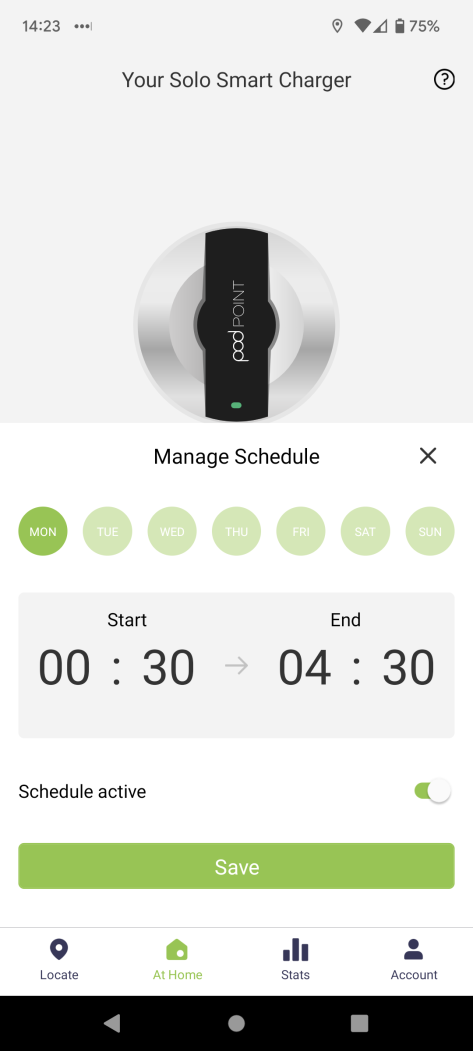
My electricity tariff is called Octopus Go, which is designed for electric vehicle owners. Any electricity I use between 12:30am and 4:30am is significantly cheaper than at other times. I use a PodPoint charger, which allows me to control when the car will charge via an app. For each day of the week, there’s a start time and an end time – the charger turns on at the start time, and off at the end time. (If the car isn’t plugged in while it’s “on”, that’s fine. Likewise if the car finishes charging, it will stop drawing power.) Unsurprisingly, I have my schedule set for 12:30am to 4:30am every day. (If I know I need more charge than 4 hours provides, I tweak the schedule and then set it back.) The app looks like this:

PodPoint scheduling

Normally, that schedule will get me 4 hours of charging. But this morning was special due to the clocks going back… and I didn’t know what would happen. If the charger handled the schedule as “if the local time is between 12:30am and 4:30am, then the charger should be on” then it should charge for 5 hours:

  • It would charge for 1 1/2 hours between 12:30am and 2am
  • Local time would fall back to 1am
  • It would charge for 3 1/2 hours between 1am (the second occurrence of 1am!) and 4:30am

Assuming that happened, what rate would Octopus charge me for these 5 hours? The same logic should mean the whole charging period is on the cheap tariff… but would something go wrong?

I was geekily excited by all this and tweeted as much:

Exciting experiment tonight! I have my electric car charger set to charge between 00:30 and 04:30, as that’s when I get cheap electricity. The clocks go back (2:00 to 1:00) tonight. So: a) will I get 5 hours of charging? b) will all of it be at the cheap rate? Enquiring minds etc

What actually happened?

The car definitely charged for 5 hours. The PodPoint app shows each charging session, as shown in the screenshot below. (The session only ends when I remove the cable from the car, but the charging duration is measured separately.)

PodPoint charging session

The price there is only what PodPoint thinks I’ll be charged. Octopus makes data available the day after, but I’ll be checking three things when they do:

  • How today is represented in the CSV file you can download from them
  • How today is represented in the web graphs of usage
  • How much the electricity actually cost me

(I’m fairly convinced it will all be cheap, but it’ll be good to check.)

What should the code for an EV charger look like?

I had various responses to my tweet, including at least a few people informing me that the industry standard approach to time zone handling is to convert everything to UTC internally and only convert to local time for display purposes. Those responses are the reason for this blog post… because in my view, that’s absolutely the wrong way to treat this situation.

If you haven’t previously read my post on why storing UTC is not a silver bullet you may wish to do so, and my objections this time aren’t entirely unrelated, but it’s not quite the same thing. In particular, the problems with using a conversion to UTC have nothing to do with time zone rules changing in the future.

Let’s consider the information we have here:

  • The charging schedule is expressed in local start/end times on a per-day-of-week basis, e.g. “Monday: 00:30 to 04:30”. Note that there are no dates here; just days of the week and local times.
  • The charger needs to know the current local date and time. Typically (but not necessarily) that will mean:
    • The charger knows the current instant in time (i.e. it has a system clock)
    • The charger knows the “target” time zone for which the schedule should be applied (e.g. Europe/London)
    • The charger knows the rules for that time zone

My immediate question to the proposal of “the charger should convert everything to UTC” is to ask what that even means, given the information above. Knowing that the time zone is Europe/London, how does one convert a schedule entry of “Monday: 00:30 to 04:30” to UTC? A conversion to UTC is normally for a local date and time in a particular time zone to an instant in time. Here we don’t have a local date and time; we have a day of the week and a time. In Europe/London, “Monday” will sometimes have a UTC offset of +00, and sometimes have an offset of +01. (And “Sunday” can vary over the course of the day – as it would today, starting off with a UTC offset of +01 and ending with a UTC offset of +00.)

The next question would involve dealing with ambiguity and skipped times. Suppose my schedule for Sunday was Start=01:15, End=01:45. Assuming the conversion code was pinned to a specific date, how would those be converted into UTC today, when each of those times occurs twice? What about on March 27th 2022, when those times didn’t occur at all due to a “spring forward” from 1am to 2am?

Finally, I would ask where the requirement to convert to UTC came from. Is this thinking through the requirements, or just applying received wisdom of “always convert everything to UTC”?

Slightly generalizing my earlier statement, I would probably write the requirement as:

The charger status (on or off) is determined by the charging schedule, applied to the current local date and time. The charger should be “on” if the current local time is between the start and end time in the schedule for the current local day-of-week.

That doesn’t require any conversion to UTC. It doesn’t even require that the system is aware of the current instant in time at all – it only needs to know the current local date and time, because that’s the context in which the requirements are expressed.

So how do we know when to turn the charger on or off? If we cared about turning on and off at exactly the right time, we’d probably want to work out the duration between now and the next change – and that probably would involve conversions to UTC. But that’s unecessary. The way I’d write this would be to just have an infinite loop, checking whether the charger should be on or not, then sleeping for a bit. (That could be sleeping for 1 second, 10 seconds, a minute or even 5 minutes.)

I’ve created “somewhat pseudo-code” (it’s valid C#, it compiles, and would work – but there’s no application hooked up to use the library) for this in my GitHub demo repo, but the most important aspects are discussed below. I should note that there are no tests, and it isn’t designed to handle:

  • Changes to the time zone database
  • Changes to the target time zone
  • Changes to the schedule
  • Shutdown requests
  • Handling schedules where Start is later than End (e.g. to have a schedule of “11pm to 2am”)
  • Handling an end time of “midnight” in a schedule

None of these would be hard to handle (and the first three would be much harder to handle in any system that started from a position of “convert everything to UTC) but would be distractions from the main business of “how should the conversions work”.

The main loop is in EvChargerController, which is reproduced in its entirety below (other than comments; see the full code for the comments):

using Microsoft.Extensions.Logging;
using NodaTime;
using NodaTime.Text;

namespace EvChargerTiming;

public class EvChargerController
{
    private readonly DateTimeZone zone;
    private readonly IClock clock;
    private readonly ChargingSchedule schedule;
    private readonly EvCharger charger;
    private readonly ILogger logger;

    public EvChargerController(EvCharger charger, ChargingSchedule schedule, DateTimeZone zone, IClock clock, ILogger logger)
    {
        this.charger = charger;
        this.schedule = schedule;
        this.zone = zone;
        this.clock = clock;
        this.logger = logger;
    }

    public void MainLoop(TimeSpan pollingInterval)
    {
        while (true)
        {
            Instant now = clock.GetCurrentInstant();
            ZonedDateTime nowInTimeZone = now.InZone(zone);

            bool shouldBeOn = schedule.IsChargingEnabled(nowInTimeZone.LocalDateTime);
            if (charger.On != shouldBeOn)
            {
                logger.LogInformation("At {now} ({local} local), changing state to {state}",
                    InstantPattern.ExtendedIso.Format(now),
                    ZonedDateTimePattern.GeneralFormatOnlyIso.Format(nowInTimeZone),
                    shouldBeOn);

                charger.ChangeState(shouldBeOn);
            }

            Thread.Sleep(pollingInterval);
        }
    }
}

The only conversion involved is from the current instant in time to the local time in the target time zone. That’s much easier than converting from a local time into an instant, because there’s no scope for ambiguity or skipped values. The result of the conversion is used immediately rather than stored, which means we don’t need to worry about what data going stale if the time zone rules change.

I do use the instant when logging – in reality, I’d expect the logging infrastructure to log the instant at which the log entry is created, but I thought I’d demonstrate that it’s potentially useful to specify the instant and the result of the conversion. (As it happens, ZonedDateTimePattern.GeneralFormatOnlyIso includes the the UTC offset anyway, so the instant could be inferred from that, but hey.)

The ChargingSchedule type used by EvChargerController is even simpler. Again, I’ve cut the comments out – the full code has comments.

using NodaTime;

namespace EvChargerTiming;

public record ChargingScheduleDay(IsoDayOfWeek DayOfWeek, LocalTime Start, LocalTime End)
{
    public bool Contains(LocalTime now) =>
        Start <= now && now < End;
}

public class ChargingSchedule
{
    private readonly List<ChargingScheduleDay> days;

    public ChargingSchedule(List<ChargingScheduleDay> days)
    {
        this.days = days;
    }

    public bool IsChargingEnabled(LocalDateTime dateTime)
    {
        var day = days.Single(candidate => candidate.DayOfWeek == dateTime.DayOfWeek);
        return day.Contains(dateTime.TimeOfDay);
    }
}

The key part here is the signature of the sole method within ChargingSchedule:

public bool IsChargingEnabled(LocalDateTime dateTime)

From the perspective of turning the charger on and off, all we need to know is whether or not it should be on at a particular local date and time – which maps precisely onto the requirements.

Everything else derives from that requirement – and as you can see, the implementation is really trivial. There are basically three lines of “real code”, and they’re very easily testable.

Conclusion

When working with a date/time challenge, the first response should be “I need specific and clear requirements” rather than “we should use UTC”. Let the requirements drive the code. In this particular case, all the data is inherently “local”, and we never want to store any instants in time, so the conventional wisdom of converting to UTC really doesn’t help.

I’d also note that it’s a lot easier to spot that only the local date/time is relevant when using Noda Time than it would have been with the .NET built-in types – a signature of IsChargingEnabled(DateTime dateTime) would have needed more careful documentation to explain its intention.

Finally, remember that conversions from an instant in time to a local date/time are generally simpler than the other way round, as they’re always unambiguous. The solution above never needs to convert in the other direction, so we never need to make any decisions of how to handle ambiguous or skipped values.

None of this is intended to imply that you should never use UTC. When storing current/past timestamps (rather than user data) I’d almost always use UTC. But user data itself is rarely expressed in UTC, and sometimes (as here) we never need to do a conversion to UTC in order to process the data – if you don’t need to convert it, why would you do so?

Introduction to DigiMixer

This is the first of what I expect to become a series of maybe a dozen blog posts about a hobby project I’ve started, called DigiMixer.

Back in January 2021 I posted about controlling an XR-16 using Open Sound Control, and then later using an X-Touch Mini to control the XR-16 using the same underlying code.

Since then, this has become part of my church A/V project, At Your Service, which I’ve also mentioned in blog posts about VISCA cameras and MAUI. At Your Service (AYS) has been used “in production” (i.e. for real Sunday services) for about a year and a half now, and the code to control the XR-18 (which is an XR-16 plus USB audio interface, effectively) is absolutely crucial to this. Fortunately, it’s proved pretty stable.

I don’t currently expect AYS to be used in any church other than my local one (Tilehurst Methodist Church), but I’d like to at least work on making it a little more feasible for that to happen – particularly if I can have fun with more coding experience at the same time. To that end, I’ve started looking at other digital mixers that are similar to the XR-16. These are audio mixers which all look pretty similar: they have XLR sockets for inputs and outputs, possibly some headphone sockets and volume control for those, usually a USB connection so it can act as an audio interface, and a network connection to control it. Some have additional network connections for network-based audio expansions and the like, but I’m not (currently) interested in that aspect.

The part that makes these mixers different to “regular” audio mixers is what they lack: faders, EQ adjusters, mute buttons etc. That’s all done via network control. There are some mixers that can be controlled over the network as well as physically, but I haven’t investigated those.

Each of these mixers from different manufacturers is controlled in a different way, and they all have different features and limitations. However, they have some core functionality in common, and that’s probably enough commonality for use in a church service. The aim of the DigiMixer project is to create a lowest-common-denominator abstraction allowing an application such as AYS (and potentially multiple sample standalone DigiMixer applications) to control any of these mixers without having to “know” about anything other than the abstraction.

There’s nothing particularly new about the abstraction concept here, but this use case happens to tie into something I really want to do anyway, and I believe it will provide plenty of material for blog posts on applying abstraction in C#, in the real world. Most articles on abstraction are theoretical, for perfectly valid reasons – but that means they gloss over the kind of issue you face when trying to apply the ideas for real. I suspect most developers have encountered this sort of thing, but I don’t have any deadlines for DigiMixer, and I can share everything without worrying about confidential material etc.

This first post is nothing but background material, partly as I’m waiting for one mixer to arrive, and some more information about others. The rest of this post is just a list of the mixers I either have access to, have on order, or which I’d like to get to work if possible. If you know of any others (particularly budget-friendly ones with good documentation!), please leave a comment.

Behringer X-Air series (XR-12, XR-16, XR-18, X-32)

XR-18 photo

This is where I started, and the mixer series I know best. We use an XR-18 at church and I have one in my shed as my “main mixer”. It’s controlled via Open Sound Control – with a few customizations. There’s a reasonable amount of documentation, albeit scattered across the web and mostly aimed at the (higher end) X-32. The Unofficial X32/M32 OSC Protocol document by Patrick‐Gilles Maillot is probably the most helpful.

SoundCraft Ui series

Ui24R

The SoundCraft Ui series (Ui12, Ui16, Ui24R) is a set of mixers I initially considered back in 2020/2021 when doing research. Big hat tip to Tom Der from SoundCraft, who sent me documentation for the protocol that Ui mixers use for control. (With an explicit “this isn’t supported” note, which is entirely reasonable.) I recently found a more recent version of that documentation on a Crestron Programmers Group (which I joined purely to get access to the doc). In other words, the documentation does exist and is somewhat public, but it’s not as easily accessible as the OSC documentation.

I now have a Ui24R which I’m enjoying playing with. I’ll be blogging more about the protocol later.

Allen and Heath Qu series

Qu-Sb

The Qu series is a range of digital mixers, most of which have physical control surfaces. I have a Qu-Sb on order, but I’m not expecting it to arrive for a while. (They’re back-ordered everywhere, basically.)

These mixers can be controlled by RTP-MIDI – effectively, a MIDI connection over the network. Allen and Heath provide what looks to be pretty comprehensive documentation – although as I haven’t started implementing it yet, it’s hard to say that it’s truly accurate and comprehensive just now. (I’m pretty hopeful though.) I’ve already used MIDI quite a bit for other projects, and I’m hoping I’ll be able to use that abstraction (either with an existing RTP-MIDI driver or cobbling together just the bits I need myself).

RCF M-18

M-18

The M-18 is unique in this set, as all the sockets are on the back rather than the front. That makes it less attractive for rack-mounting, unless you can rack mount it backwards (which would then be fine in terms of audio cables, but annoying for power). One thing it very much has in its favour is price though – it’s the cheapest of any of the mixers in this post.

It isn’t well-documented in terms of control protocol, but there’s a project on GitHub which reliably informs me that it implements OSC (like the X-Air series does). That could be very interesting in terms of seeing how much I’d need to change my OSC code; implementing a protocol with only one peer to test against is always a risky business.

PreSonus StudioLive Series III

StudioLive 16R

There are three options in the StudioLive Series III “R” range: 16R, 24R and 32R. (It looks like Series III mixers without the “R” suffix, i.e. the non-rack-mounted ones, have been discontinued, but that the R range is still going.) The 16R is a mere 1U for racking, which is very appealing – with the downside that inputs are at the front and outputs are at the back. It also trades height for depth – at 305mm deep, it’s deeper than the studio rack cabinet I have, and I suspect I’m not alone in that. As it’s so short though, I’m sure I could find another space for it…

It uses the “ucnet” protocol, which is proprietary to PreSonus and not documented… but there’s a project on GitHub where the author has performed quite a lot of reverse engineering already and documented his findings. This would certainly be an interesting mixer to include, although it’s pricy.

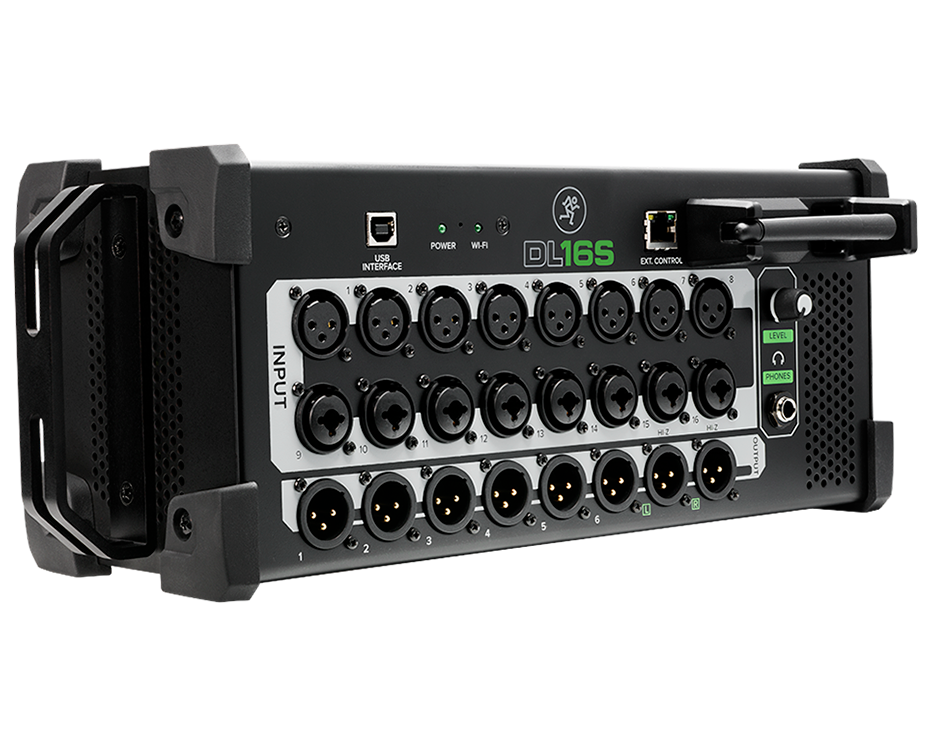
Mackie DL Series

Mackie DL16S

The Mackie DL16S and its 32-input cousins the DL32S and DL32R are all rack-mountable mixers, and the DL32R also features Dante audio networking which I’d love to dabble with some time.

Unfortunately, as far as I can tell there’s no documentation for the Master Fader Control app which is used to control the mixer… which means I’d be stuck reverse-engineering from scratch. While that can be fun, it’s something I really don’t have the time for. I’m not saying I’d object if I found one going for a song on ebay, but I really can’t justify buying one with only a small likelihood of getting anywhere with it. So for the moment at least, the Mackie DL series is unlikely to make it into my shed. (That’s probably a good thing really; arguably one really can have too many mixers.)

Taking .NET MAUI for a spin

I’ve been keeping an eye on MAUI – the .NET Multi-platform App UI – for a while, but I’ve only recently actually given it a try.

MAUI is essentially the evolution of Xamarin.Forms, embracing WinUI 3 and expanding from a mobile focus to desktop apps as well. It’s still in preview at the time of writing, but only just – release candidate 1 came out on April 12th 2022.

I’ve been considering it as a long-term future for my V-Drum Explorer application, which is firmly a desktop app, just to make it available on macOS as well as Windows. However, when a friend mentioned that if only I had a mobile app for At Your Service (my church A/V system), it would open up new possibilities… well, that sounded like an opportunity to take MAUI for a spin.

This blog post is about initial impressions. It’s worth being really clear about that – please take both praise and criticism of MAUI with a pinch of salt. I’m not a mobile developer, I’m not a UI designer, I haven’t tried doing anything massively taxing with MAUI, and I may well be doing a bunch of things in the wrong way.

What’s the goal?

Besides “having fun”, the aim is to end up with a workable mobile app for At Your Service (AYS from here onwards). In an ideal world, that would work on iPhones, iPads, Android phones and Android tablets. In reality, the number of people who will ever use the app is likely to be 1 or 2 – and both of us have Android phones. So that’s all I’ve actually tested with. I may at some point try to build and test with an iPad just for kicks, but I’m not really bothered by it. As it happens, I’ve tried the Windows app version, but that hasn’t worked out for me so far – more details later.

So what does this mobile app need to do? While I dare say it may be feasible to replicate almost everything you can do with AYS, that’s not the aim here. I have no desire to create new service plans on my phone, nor to edit hymn words etc. The aim is only to use the application to “direct” a service without having to physically sit behind the A/V desk.

Crucially, there’s no sensible way that a mobile app could completely replace the desktop app, at least with our current hardware. While a lot of the equipment we use is networked (specifically the cameras and the mixer), the projector in the church building is connected directly to the desktop computer via an HDMI cable. (OBS Studio captures that output as a virtual webcam for Zoom.) Even if everything could be done with an entirely standalone mobile app, it would mean reimplementing or at least adapting a huge amount of code.

Instead, the aim is to make the mobile app an alternative control mechanism for an instance of AYS running on the church desktop in the normal way. I want it to be able to handle all the basic functionality used during a service:

  • Switch between “scenes” (where as scene in AYS is something like “a hymn” or “a reading” or “the preacher in a particular place”; switching between scenes brings up all the appropriate microphones and cameras, as well as whatever text/PowerPoint/video needs to be displayed)
  • Change pages in scenes with text content (e.g. hymns and liturgy)
  • Change slides in PowerPoint presentations
  • Play/pause for videos, along with volume control and simple “back 10 seconds” and “forward 10 seconds” buttons
  • Basic camera controls, across multiple cameras
    • Move to a preset
    • Change whether the camera is shown or not, and how it’s shown (e.g. “top right corner”)
  • Basic mixer controls
    • Mute/unmute microphones
    • Potentially change the volume for microphones – if I do this, I might want to change the volume for the Zoom output independently of the in-building output

What’s the architecture?

The desktop AYS system already has a slightly split architecture: the main application is 64-bit, but it launches a 32-bit secondary app which is a combined WPF + ASP.NET Core server to handle Zoom. (Until fairly recently, the Zoom SDK didn’t support 64-bit apps, and the 32-bit address space ended up causing problems when decoding multiple cameras.) That meant it wasn’t much of a stretch to figure out at least one possible architecture for the mobile app:

  • The main (desktop) AYS system runs an ASP.NET Core server
  • The mobile app connects to the main system via HTTP, polling for current status and making control requests such as “switch to scene 2”.

Arguably, it would be more efficient to use a gRPC stream to push updates from the desktop system to the mobile app, and at some point I might introduce gRPC into the mix, but frequent polling (about every 100ms) seems to work well enough. Sticking to just JSON and “regular” HTTP for requests and responses also makes it simple to test some aspects in a browser, too.

One quirk of both of the servers is that although they receive the requests on threadpool threads, almost all of them use the WPF dispatcher for execution. This means I don’t need to worry about (say) an status request seeing half the information from before a scene change and half the information after a scene change. It also means that the rest of the AYS desktop code can still assume that anything that affects the UI will happen on the dispatcher thread.

Even without using gRPC, I’ve made a potentially-silly choice of effectively rolling my own request handlers instead of using Web API. There’s a certain amount of wheel reinvention going on, and I may well refactor that away at some point. It does allow for some neatness though: there’s a shared project containing the requests and responses, and each request is decorated (via an attribute) with the path on which it should be served. The “commands” (request handlers) on the server are generic in the request/response types, and an abstract base class registers that command with the path on the request type. Likewise when making a request, a simple wrapper class around HttpClient can interrogate the request type to determine the path to use. At some point I may try to refactor the code to keep that approach to avoid duplication of path information, while not doing quite as much wheel reinvention as at the moment.

What does the UI look like? (And how does it work?)

When I first started doing a bit of research into how to create a MAUI app, there was a pleasant coincidence: I’d expected a tabbed UI, with one of the tabs for each part of the functionality listed above. As it happens, that’s made particularly easy in MAUI with the Shell page. Fortunately I found documentation for that before starting to use a more manually-crafted use of tabs. The shell automatically removes the tab indicator if only one tab is visible, and basically handles things reasonably simply.

The binding knowledge I’ve gradually gained from building WPF apps (specifically V-Drum Explorer and AYS) was almost immediately applicable – fortunately I saw documentation noting that the DataContext in WPF is BindingContext in MAUI, and from there it was pretty straightforward. The code is “mostly-MVVM” in a style that I’ve found to be pretty pragmatic when writing AYS: I’m not dogmatic about the views being completely code-free, but almost everything is in view models. I’ve always found command binding to be more trouble than it’s worth, so there are plenty of event handlers in the views that just delegate directly to the view model.

There’s a separate view model for each tab, and an additional “home” tab (and corresponding view model) which is just about choosing a system to connect to. (I haven’t yet implemented any sort of discovery broadcast. I don’t even have app settings – it’s just a manually-curated set of URLs to connect to.) The “home” view model contains a reference to each of the other view models, and they all have two features (not yet via an interface, although that could come soon):

  • Update the view model based on a status polling response
  • A property to determine whether the tab for the view model should be visible. (If there’s no text being displayed, we don’t need to display the text tab, etc.)

I’m not using any frameworks for MVVM: I have a pretty simplistic ViewModelBase which makes it easy enough to raise property-changed events, including automatically raising events for related properties that are indicated by attributes. I know that at some point I should probably investigate C# source generators to remove the boilerplate, but it’s low down my priority list.

MAUI supports dependency injection, and at some point when investigating navigating between different tabs (which initially didn’t work for reasons I still don’t understand) I moved to using DI for the view models, and it’s worked well. The program entry point is very readable (partly due to a trivial ConfigureServices extension method which I expect to be provided out-of-the-box at some point):

public static MauiApp CreateMauiApp() => MauiApp
    .CreateBuilder()
    .UseMauiApp<App>()
    .ConfigureFonts(fonts => fonts
        .AddFont("OpenSans-Regular.ttf", "OpenSansRegular")
        .AddFont("OpenSans-Semibold.ttf", "OpenSansSemibold"))
    .ConfigureServices(services => services
        .AddSingleton<AppShell>()
        .AddSingleton<HomeViewModel>()
        .AddSingleton<MixerViewModel>()
        .AddSingleton<MultiCameraViewModel>()
        .AddSingleton<TextViewModel>()
        .AddSingleton<MediaViewModel>()
        .AddSingleton<PowerPointViewModel>()
        .AddSingleton<ScenesViewModel>()
        .AddSingleton<ApiClient>())
    .Build();

I’ve had to tweak the default style very slightly: the default “unselected tab” colour is almost unreadably faint, and for my use case I really need to be able to see which tabs are available at any given time. Fortunately the styling is pretty clear – it didn’t take much experimentation to get the effect I wanted. Likewise I added extra styles for the next/previous buttons for the PowerPoint and text tabs.

Sources of truth

One aspect I always find interesting in this sort of UI is what the source of truth is. As an example, what should happen when I select a different text page to display? Obviously I need to send a request to the main application to make the change, but what should the UI do? Should it immediately update, expecting that the request will be successful? Or should it only update when we next get a status polling response that indicates the change?

I’ve ended up going for the latter approach, after initially using the former. The main reason for this is to make the UI smoother. It’s easy to end up with race conditions when there’s no one source of truth. For example, here’s a situation I’ve seen happen:

  • T=0: Make status request
  • T=1: Status response: text page 3 is selected
  • T=2: Start status request
  • T=3: User clicks on page 4
  • T=4: Start “move to page 4” request
  • T=5: Status response: text page 3 is selected
  • T=6: Page change response: OK
  • T=7: Start status request
  • T=8: Status response: text page 4 is selected

(These aren’t meant to be times in seconds or anything – just a sequence of instants in time.)

If the UI changes at T=3 to show page 4 as the selected one, then it ends up bouncing back to page 3 at T=5, then back to page 4 at T=8. That looks really messy.

If instead we say that the only thing that can change the UI displaying the selected page is a status response, then we stay with page 3 selected from T=1 until T=8. The user needs to wait a little longer to see the result, but it doesn’t bounce between two sources of truth. As I’m polling every \~100ms, it doesn’t actually take very long to register. This also has the additional benefit that if the “change page” request fails, the UI still reflects the reality of the system state.

If this all sounds familiar from another blog post, that’s because it is. When originally writing about controlling a digital mixer using OSC an X-Touch Mini I observed the same thing. I’m sure there are plenty of cases where this approach doesn’t apply, but it seems to be working for me at the moment. It does affect how binding is used – effectively I don’t want to “allow” a list item to be selected, instead reacting to the intent to select it.

Screenshots

This section shows the tabs available, without very much explanation. I really wanted to include two of my favourite features: PowerPoint slide previews (little thumbnail images of the slides) and camera snapshots (so the user can see what a camera is currently pointing at, even if that camera isn’t being displayed on-screen at the moment). Unfortunately, images seem to be somewhat-broken in RC-1 at the moment. I can get the PowerPoint slides to display in my ListView if I just use an ImageCell, but that’s too restrictive. I can’t get the camera preview to display at all. I think it’s due to this issue but I’m not entirely sure.

With that caveat out of the way, let’s have a little tour of the app.

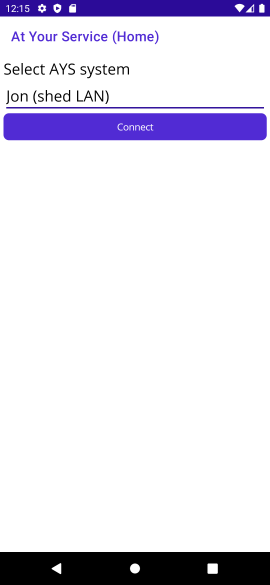
Home tab

On starting the app, it’s not connected to any system, so the user has to select one from the drop-down and connect. Notice how there are no tabs shown at this point.

Home tab (disconnected)

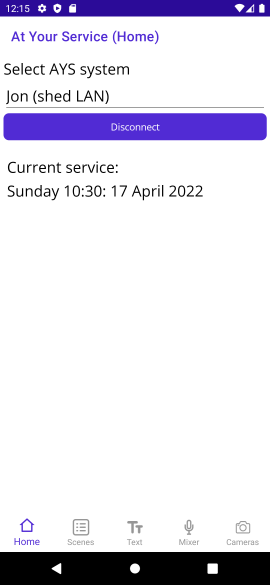
After connecting, the app shows the currently-loaded service (if there is one). If there’s a service loaded that contains any scenes at all, the Scenes tab is visible. The Mixer and Cameras tabs will always be visible when connected to a system (unless that system has no sound channels or no cameras, which seems unlikely).

In the screenshot below, the Text tab is also visible, because it so happens that the current scene contains text.

Home tab (connected)

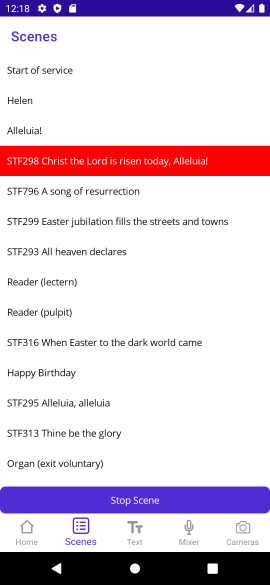
Scenes tab

The Scenes tab shows the list of scenes, indicating which one is currently “active” (if any). If there is an active scene, the “Stop Scene” button is visible. (I’m considering having it just disabled if there’s no active scene, rather than it appearing and disappearing.)

Tapping on a scene launches it – and if that scene has text, PowerPoint or a video, it automatically navigates to that tab (as the next thing the user will probably want to do is interact with that tab).

Scenes tab

Text tab

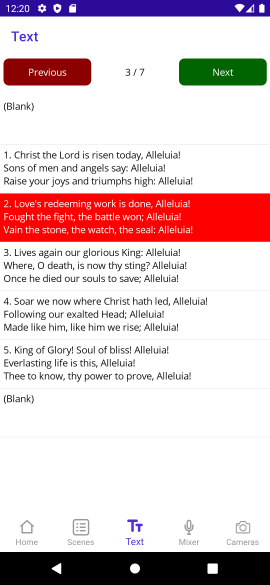
The text tab shows the various pages of the text being displayed. Even though AYS supports styling (different colours of text, bold, italic etc) the preview is just plain text. It’s deliberately set at about 3 1/2 lines of text, which makes it obvious when there’s more being displayed than just what’s in the preview.

The user can select different pages by tapping on them – or just keep using the “next” button in the top right. The selected page is scrolled into view when there are more pages available than can be shown at a time.

Text tab

PowerPoint tab

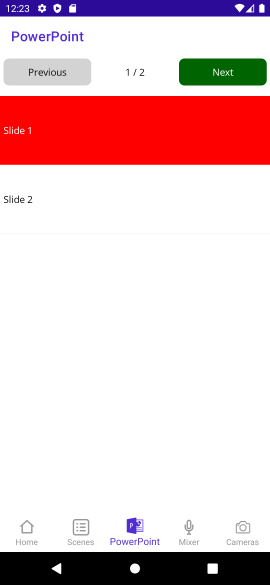
The PowerPoint is like the text tab, but for PowerPoint slides. The screenshot below looks pretty awful due to the image display bug mentioned earlier. When preview images are working, they appear on the right hand side of the list view. (The slide numbers are still displayed.)

PowerPoint tab

Media tab

The media tab is used for videos, audio, and picures. (There’s nothing that can usefully be done with a single picture; at some point I want to create the idea of a “multi-picture media item” as an alternative to creating a PowerPoint presentation where each slide is just an image.)

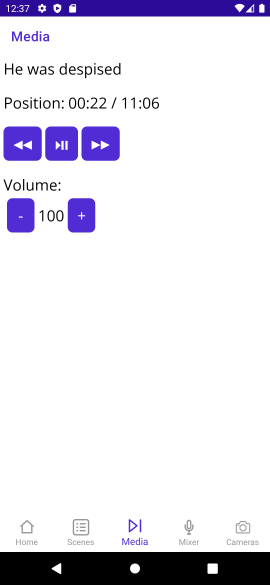
As noted before, simple controls are available:

  • Play/pause
  • Back/forward (10 seconds)
  • Volume up/down (in increments of 10 – a slider would be feasible, but not terribly useful)

One thing I’ve found very useful in AYS in general is the indicator for the current position and the total length of the media item. The screenshot below shows that the media filename is shown in this tab – whereas it’s not in the PowerPoint tab at the moment (nor the title of the text item in the Text tab). I could potentially move the title to become the title of the tab, and put it in all three places… I’m really not sure at the moment.

Media tab

Mixer tab

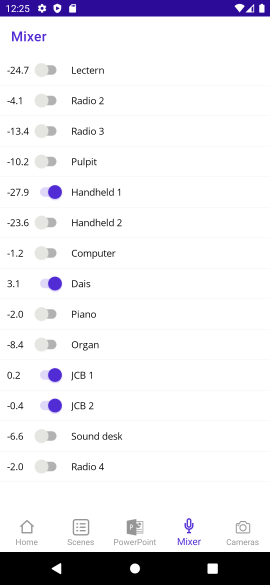
The mixer tab shows which microphones are muted (toggled off) or unmuted (toggled on) as well as their current output gain within the church building (the numbers on the left hand side, in dB). At the moment, the only interaction is to mute and unmute channels; I’m not sure whether I’ll ever implement tweaking the volume. The intention is that this app is only for basic control – I’d still expect the user to be in the church building and able to access the computer for fine-grained control where necessary.

Mixer tab

Cameras tab

The cameras tab starts off with nothing useful: you have to select a camera in order to interact with it. At that point you can:

  • Change its window position
  • Change the “corner size” – when a camera position is top-left, top-right, bottom-left, bottom-right you can change that to be 1/2, 1/3, 1/4 or 1/5 of the size of the window
  • Move it to a different preset
  • Take a preview snapshot (currently not working)

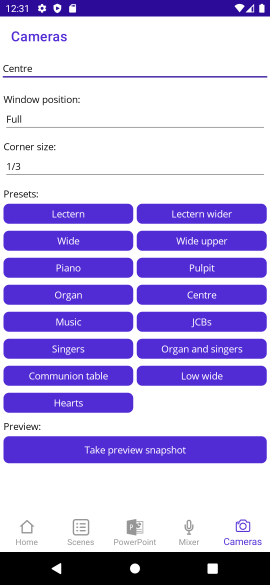
As you can see by the screenshot below (taken from the church configuration) we have quite a few presets. Note that unlike the Scene/Text/PowerPoint tabs, there’s no concept of a “currently selected” preset, at least at the moment. Once the camera has moved to a preset, it can be moved separately on the desktop system, with a good deal more fine-tuning available. (That’s how new presets are created: pan/tilt/zoom to the right spot, then set that up as a new preview.) That fine-tuning isn’t available at all on the mobile app. At some point I could add “up a bit”, “down a bit” etc, but anything more than that would require a degree of responsiveness that I just don’t think I’d get with the current architecture. But again, I think that’s fine for the use cases I’m actually interested in.

Cameras tab

Conclusion

So that’s the app. There are two big questions, of course:

  • Is it useful?
  • What’s MAUI like to work with?

The answer to the first is an unqualified “yes” – more so than I’d expected. Just a couple of days ago, on Maundy Thursday, we had a communion service with everyone seated around a table. A couple of weeks earlier, I would have had to be sat apart from the rest of the congregation, at the A/V desk. That would definitely have disrupted the sense of fellowship, at least for me – and I suspect it would have made others feel slightly awkward too. With the mobile app, I was able to control it all discreetly from my place around the table.

In the future, I’m expecting to use the app mostly at the start of a service, if I have other stewarding duties that might involve me being up at the lectern to give verbal notices, for example. I still expect that for most services I’ll use the desktop AYS interface, complete with Stream Deck and X-Touch Mini… but it’s really nice to have the mobile app as an option.

In terms of MAUI – my feelings vary massively from minute to minute.

Let’s start off with the good: two weeks ago, this application didn’t exist at all. I literally started it on April 5th, and I used it to control almost every aspect of the A/V on April 10th. That’s despite me never having used either MAUI or Xamarin.Forms before, hardly doing any mobile development before, MAUI not being fully released yet, and all of the development only taking place in spare time. (I don’t know exactly how long I spent in those five days, but it can’t have been more than 8-12 hours.)

Despite being fully functional (and genuinely useful), the app required relatively little code to implement, and will be easy to maintain. Most of the time, debugging worked well through either the emulator or my physical device, allowing UI changes to be made without restarting (this was variable) and regular debugger operations (stepping through code) worked far better than it feels they have any right to given the multiple layers involved.

It’s not all sunshine and roses though:

  • The lack of a designer isn’t a huge problem, but it did make everything that bit harder when getting started.
  • Various bugs existed in the MAUI version I was using last week, some of which have now been fixed… but at the same time, other bugs have been introduced such as image one mentioned above.
  • I’ve seen various crashes that are pretty much infeasible for me to diagnose and debug, given my lack of knowledge of the underlying system:
    • One is an IllegalStateException with a message of “The specified child already has a parent. You must call removeView() on the child’s parent first.”
    • One is a NullPointerException for Object.toString()
    • I don’t know how to reproduce either of them right now.
  • Even when images were working, getting the layout and scaling right for them was very much a matter of trial and error. Various other aspects of layout have been surprising as well – I don’t know whether my expectations are incorrect, or whether these were bugs. I’m used to layouts sometimes being a bit of a mystery, but these were very odd.
  • The Windows app should provide an easy way of prototyping functionality without needing an emulator… and the home tab appears to work fine. Unfortunately the other tabs don’t magically appear (as they do on Android) after connecting, which makes it hard to make any further progress.
  • Sometimes the emulator seems to get stuck, and I can’t deploy to it. Unsticking it seems to be hit and miss. I don’t know whether this is an issue in the emulator itself, or how VS and MAUI are interacting with it.

In short, it’s very promising – but this doesn’t really feel like it’s release-candidate-ready yet. Maybe my stability expectations are too high, or maybe I’ve just been unlucky with the bugs I happen to have hit, but it doesn’t feel like I’ve been doing anything particularly unusual. I’m hopeful that things will continue to improve though, and maybe it’ll all be rock solid in 6 months or so.

I can see myself using MAUI for some desktop apps in the future – but I suspect that for anything that doesn’t naturally feel like it would just fit into a mobile app (with my limited design skills) I expect to keep using WPF. Now that I’ve got a bit of experience with MAUI, I can’t see myself porting V-Drum Explorer to it any time soon – it very much feels like “a mobile app framework that lets you run those mobile apps on the desktop”. That’s not a criticism as such; I suspect it’s an entirely valid product direction choice, it just happens not to be what I’m looking for.

All the problems aside, I’m still frankly astonished at getting a working, useful mobile app built in less than a week (and then polished a bit over the following week). Hats off to the MAUI team, and I look forward to seeing the rough edges become smoother in future releases.

What’s up with TimeZoneInfo on .NET 6? (Part 2)

In part 1, we ended up with a lot of test data specified in a text file, but without working tests – and with a conundrum as to how we’d test the .NET Core 3.1 data which requires additional information about the “hidden” AdjustmentRule.BaseUtcOffsetDelta property.

As with the previous blog post, this one is fairly stream-of-consciousness – you’ll see me changing my mind and spotting earlier mistakes as I go along. It’s not about trying to give advice – it’s intended for anyone who is interested in my thought process. If that’s not the kind of material you enjoy, I suggest you skip this post.

Abstracting platform differences

Well, time does wonders, and an answer to making most of the code agnostic to whether it’s running under .NET 6 or not now seems obvious: I can introduce my own class which is closer to the .NET 6 AdjustmentRule class, in terms of accessible properties. As it happens, a property of StandardOffset for the rule makes my code simpler than adding TimeZoneInfo.BaseUtcOffset and AdjustmentRule.BaseUtcOffsetDelta together every time I need it. But fundamentally I can put all the information I need into one class, and populate that class appropriately (without even needing a TimeZoneInfo) for tests, and use the TimeZoneInfo where necessary in the production code. (We have plenty of tests that use the actual TimeZoneInfo – but using just data from adjustment rules makes it easy to experiment with the Unix representation while on Windows.)

That means adding some derived data to our text file for .NET Core 3.1 – basically working out what the AdjustmentRule.BaseUtcOffsetDelta would be for that rule. We can do that by finding one instant in time within the rule, asking the TimeZoneInfo whether that instant is in daylight savings, and then comparing the prediction of “zone base UTC offset and maybe rule daylight savings” with the actual UTC offset.

With that in place, we get most of the way to passing tests – at least for the fixed data we’re loading from the text file.

Hidden data

There’s one problem though: Europe/Dublin in 1960. We have this adjustment rule in both .NET Core 3.1 and .NET 6:

1960-04-10 - 1960-10-02: Daylight delta: +00; DST starts April 10 at 03:00:00 and ends October 02 at 02:59:59.999

Now I know that should actually be treated as “daylight savings of 1 hour, standard offset of UTC+0”. The TimeZoneInfo knows that as well – if you ask for the UTC offset at (say) June 1st 1960, you the correct answer of UTC+1, and if you ask the TimeZoneInfo whether it’s in daylight savings or not, it returns true… but in most rules, a “daylight delta” of 0 means “this isn’t in daylight time”.

I believe this is basically a problem with the conversion from the internal rules to the publicly-available rules which loses some “hidden” bits of information. But basically it means that when I create my standardized adjustment rule, I need to provide some extra information. That’s annoying in terms of specifying yet more data in the text file, but it’s doable.

Given that the Unix rules and the Windows rules are really quite different, and I’ve already got separate paths for them (and everything still seems to be working on Windows), at this point I think it’s worth only using the “enhanced” adjustment rule code for Unix. That has the helpful property that we don’t need different ways of identifying the first instant in an adjustment rule: for Unix, you always use the daylight saving transition time of day; for Windows you never do.

At this point, I’m actually rethinking my strategy of “introduce a new type”. It’s got so much more than I really wanted it to have, I think I’m just going to split what was originally one method into two:

// Hard to test: needs a time zone
internal static BclAdjustmentRule FromUnixAdjustmentRule(TimeZoneInfo zone, TimeZoneInfo.AdjustmentRule rule)

... becomes ...

// Same signature as before, but now it just extracts appropriate information and calls the one below.
internal static BclAdjustmentRule FromUnixAdjustmentRule(TimeZoneInfo zone, TimeZoneInfo.AdjustmentRule rule)

// Easier to test with data from a text file
internal static BclAdjustmentRule FromUnixAdjustmentRule(TimeZoneInfo.AdjustmentRule rule,
    string standardName, string daylightName, TimeSpan zoneStandardOffset, TimeSpan ruleStandardOffset,
    bool forceDaylightSavings)

The unit tests that I’m trying to get to pass with just rule data just need to call into the second method. The production code (tested in other unit tests, but only on the “right” system) will call the first method.

(In the end, it turns out it’s easier to make the second method return a ZoneInterval rather than a BclAdjustmentRule, but the idea is the same.)

Are we nearly there yet?

At this point, I wish I’d paid slightly more attention while changing the code… because the code that did work for America/Sao_Paulo in 2018 is now failing for .NET 6. I can see why it’s failing now – I’m not quite so sure why it worked a few hours before.

The problem is in this pair of adjustment rules:

2017-10-15 - 2017-12-31: Daylight delta: +01; DST starts October 15 at 00:00:00 and ends December 31 at 23:59:59.999
2018-01-01 - 2018-02-17: Daylight delta: +01; DST starts January 01 at 00:00:00 and ends February 17 at 23:59:59.999

These should effectively be merged: the end of the first rule should be the start of the second rule. In most rules, we can treat the rule as starting at the combination of “start date and start transition time” with a UTC offset of “the base offset of the zone” (not the rule). We then treat the rule as ending as the combination of “end date and end transition time” with a UTC offset of “the base offset of the zone + daylight delta of the rule”. But that doesn’t work in the example above: we end up with a gap of an hour between the two rules.

There’s a horrible hack that might fix this: if the end date is on December 31st with an end transition time of 23:59:59 (with any subsecond value), we could ignore daylight savings.

In implementing that, I found a commented out piece of code which did it, which was effectively abandoned in the refactoring described above – so that explains my confusion about why the code had only just stopped working.

With that in place, the data-based unit tests are green.

Now to run the main set of unit tests…

TimeZoneInfo-based unit tests

Just to reiterate, I have two types of tests for this code:

  • Unit tests based on rules described in a text file. These can be run on any implementation, and always represent “the rule data we’d expect to see on Unix”. There are currently 16 tests here – specific periods of history for specific time zones.
  • Unit tests based on the TimeZoneInfo objects exposed by the BCL on the system we’re running on. These include checking every time zone, and ensuring that every transition between 1950 and either 2037 or 2050 (depending on the system, for reasons I won’t go into now) is the same between the TimeZoneInfo representation, and the Noda Time representation of the TimeZoneInfo.

The first set of tests is what we’ve been checking so far – I now need to get the second set of tests working in at least four contexts: .NET Core 3.1 and .NET 6, on both Windows and Linux.

When I started this journey, the tests were working on Windows (both .NET Core 3.1 and .NET 6) and on Linux on .NET Core 3.1. It was only .NET 6 that was failing. Let’s start by checking that we haven’t broken anything on Windows… yes, everything is still working there. That’s pretty unsurprising, given that I’ve aimed to keep the Windows code path exactly the same as it was before. (There’s a potential optimization I can apply using the new BaseUtcOffsetDelta property on .NET 6, but I can apply that later.)

Next is testing .NET Core 3.1 on Linux – this used to work, but I wouldn’t be surprised to see problems introduced by the changes… and indeed, the final change I made broke lots of time zones due to trying to add daylight savings to DateTime.MaxValue. That’s easily fixed… and with that fix in place there are two errors. That’s fine – I’ll check those later and add text-file-data-based tests for those two time zones. Let’s check .NET 6 first though, which had large numbers of problems before… now we have 14. Definite progress! Those 14 failures seem to fall into two categories, so I’ll address those first.

Adding more test data and fixing one problem

First, I’m going to commit the code I’ve got. It definitely needs changing, but if I try something that doesn’t help, I want to be able to get back to where I was.

Next, let’s improve the exception messages thrown by the .NET 6 code. There are two exceptions, that currently look like this:

(For Pacific/Wallis and others)
System.InvalidOperationException : Zone recurrence rules have identical transitions. This time zone is broken.

(For America/Creston and others)
System.ArgumentException : The start Instant must be less than the end Instant (Parameter 'start')

Both have stack traces of code, but that doesn’t help me know what the invalid values are, which means I can’t easily find the relevant rules to work on.

After a few minutes of work, this is fixed and the output is much more informative:

(For Pacific/Wallis and others)
System.InvalidOperationException : Zone recurrence rules have identical transitions. This time zone is broken. Transition time: 0002-12-31T11:45:00Z

(For America/Creston and others)
System.ArgumentException : The start Instant must be less than the end Instant. start: 1944-01-01T07:00:00Z; end: 1944-01-01T06:01:00Z (Parameter 'start')

The broken rule for Pacific/Wallis is particularly interesting – year 2AD! So let’s see what the rules look like in textual form. First let’s look at Pacific Wallis

Pacific/Wallis

.NET Core 3.1:
Base offset = 12
0001-01-01 - 1900-12-31: Base UTC offset delta: +00:15; Daylight delta: +00; DST starts January 01 at 00:00:00 and ends December 31 at 23:44:39
1900-12-31 - 2038-01-19: Daylight delta: +00; DST starts December 31 at 23:44:40 and ends January 19 at 15:14:06
2038-01-19 - 9999-12-31: Daylight delta: +00; DST starts January 19 at 15:14:07 and ends December 31 at 23:59:59

.NET 6.0:
Base offset = 12
0001-01-01 - 0001-12-31: Base UTC offset delta: +00:15; Daylight delta: +00; DST starts January 01 at 00:00:00 and ends December 31 at 23:59:59.999
0002-01-01 - 1899-12-31: Base UTC offset delta: +00:15; Daylight delta: +00; DST starts January 01 at 00:00:00 and ends December 31 at 23:59:59.999
1900-01-01 - 1900-12-31: Base UTC offset delta: +00:15; Daylight delta: +00; DST starts January 01 at 00:00:00 and ends December 31 at 23:44:39.999

Noda Time zone intervals:
0001-01-01T00:00:00Z - 1900-12-31T11:44:40Z, +12:15:20, +0
1900-12-31T11:44:40Z - 9999-12-31T23:59:59Z, +12, +0

The first Noda Time zone interval extends from the start of time, and the second one extends to the end of time. I haven’t yet decided whether I’ll actually try to represent all of this in the “regular” kind of test. The offsets shown as +00:15 should actually be +00:15:20, but it looks like .NET doesn’t handle sub-minute offsets. That’s interesting… I can easily change the Noda Time data to round to expect 12:15 of course.

Both .NET Core 3.1 and .NET 6 have pretty “interesting” representations here:

  • Why does .NET Core 3.1 have a new rule in 2038? It’s no coincidence that the instant being represented is 231 seconds after the Unix epoch, I’m sure… but there’s no need for a new rule.
  • Why does .NET 6 have one rule for year 1AD and a separate rule for years 2 to 1899 inclusive?
  • Why use an offset rounded to the nearest minute, but keep the time zone transition at 1900-12-31T11:44:40Z?

It’s not clear to me just from inspection why this would cause the Noda Time conversion to fail, admittedly. But that’ll be fun to dig into. Before we do, let’s find the test data for America/Creston, around 1944:

America/Creston

.NET Core 3.1:
Base offset = -7
1942-02-09 - 1944-01-01: Daylight delta: +01; DST starts February 09 at 02:00:00 and ends January 01 at 00:00:59
1943-12-31 - 1944-04-01: Daylight delta: +00; DST starts December 31 at 23:01:00 and ends April 01 at 00:00:59
1944-04-01 - 1944-10-01: Daylight delta: +01; DST starts April 01 at 00:01:00 and ends October 01 at 00:00:59
1944-09-30 - 1967-04-30: Daylight delta: +00; DST starts September 30 at 23:01:00 and ends April 30 at 01:59:59

.NET 6.0:
Base offset = -7
1942-02-09 - 1942-12-31: Daylight delta: +01; DST starts February 09 at 02:00:00 and ends December 31 at 23:59:59.999
1943-01-01 - 1943-12-31: Daylight delta: +01; DST starts January 01 at 00:00:00 and ends December 31 at 23:59:59.999
1944-01-01 - 1944-01-01: Daylight delta: +01; DST starts January 01 at 00:00:00 and ends January 01 at 00:00:59.999
1944-04-01 - 1944-10-01: Daylight delta: +01; DST starts April 01 at 00:01:00 and ends October 01 at 00:00:59.999
1967-04-30 - 1967-10-29: Daylight delta: +01; DST starts April 30 at 02:00:00 and ends October 29 at 01:59:59.999

Noda Time zone intervals:

1942-02-09T09:00:00Z - 1944-01-01T06:01:00Z, -7, +1
1944-01-01T06:01:00Z - 1944-04-01T07:01:00Z, -7, +0
1944-04-01T07:01:00Z - 1944-10-01T06:01:00Z, -7, +1
1944-10-01T06:01:00Z - 1967-04-30T09:00:00Z, -7, +0

Well those are certainly “interesting” rules – and I can immediately see why Noda Time has rejected the .NET 6 rules. The third rule starts at 1944-01-01T07:00:00Z (assuming that the 1944-01-01T00:00:00 is in zone standard time of UTC-7) and finishes at 1944-01-01T06:01:00Z (assuming that the 1944-01-01T00:00:59.999 is in daylight time).

Part of the problem is that we’ve said before that if a rule ends on December 31st at 23:59:59, we’ll interpret that as being in standard time instead of being in daylight time… which means that the second rule would finish at 1944-01-01T07:00:00Z – but we genuinely want it to finish at 06:00:00Z, and maybe understand the third rule to mean 1944-01-01T06:00:00Z to 19:44-01-01T06:01:00Z for that last minute of daylight time before we observe standard time until April 1st.

We could do that by adding special rules:

  • If a rule appears to end before it starts, assume that the start should be treated as daylight time instead of standard time. (That would make the third rule valid, covering 1944-01-01T06:00:00Z to 19:44-01-01T06:01:00Z.)
  • If one rule ends after the next one starts, change its end point to the start of the next one. I currently have the reverse logic to this, changing the start point of the next one instead. That wouldn’t help us here. I can’t remember exactly why I’ve got the current logic: I need to add some comments on this bit of code…

Astonishingly, this works, getting us down to 8 errors on .NET 6. Of these, 6 are the same kind of error as Pacific/Wallis, but 2 are unfortunately of the form “you created a time zone successfully, but it doesn’t give the same results as the original one”. Hmm.

Still, let’s commit this change and move on to Pacific/Wallis.

Handling Pacific/Wallis

Once I’d added the Pacific/Wallis data, those tests passed – which means the problem must lie somewhere in how the results of the rules are interpreted in order to build up a DateTimeZone from the converted rules. That’s logic’s already in a BuildMap method, which I just need to make internal instead of private. That also contains some code which we’re essentially duplicating in the test code (around inserting standard zone intervals if they’re missing, and coalescing some zone intervals together). At some point I want to refactor both the production and test code to remove the duplication – but I want to get to working code first.

I’ll add a new test, just for Pacific/Wallis (as that’s the only test case we’ve got which is complete from the start to the end of time), and which just constructs the map. I expect it will throw an exception, so I’m not actually going top assert anything about the result yet.

Hmm. It doesn’t throw. That’s weird. Let’s rerun the full time zone tests to make sure we still have a problem at all… yes, it’s still failing.

At this point, my suspicion is that some of the code that is “duplicated” between production and test code really isn’t quite duplicated at all. Debugging the code on Linux is going to be annoying, so let’s go about this the old-fashioned way: logging.

I’d expected to be able to log the zone interval for each part of the map… but PartialZoneIntervalMap.GetZoneInterval fails, which is really, really weird. What’s even weirder is that the stack trace includes StandardDaylightAlternatingMap – which is only used in the Windows rules.

All my unit tests assume we’ve recognized that the adjustment rules are from Unix… but the ones for Pacific/Wallis actually look like Windows ones: on .NET 6, they start on January 1st, and end on December 31st.

Let’s add a grotty hack: I happen to know that Windows time zone data never has any “really old” rules other than ones that start at the beginning of time – if we see anything with a start year that’s not 1 and isn’t after (say) 1600, that’s going to be a Unix rule.

Put that extra condition in, and lo and behold, Pacific/Wallis starts working – hooray!

Let’s rerun everything…

So, running all the tests on every framework/platform pair that I can easily test, we get:

  • Linux, .NET 6: 2 failures – Australia/Broken_Hill and Antarctica/Macquarie
  • Linux, .NET Core 3.1: 3 failures – Asia/Dhaka, Australia/Broken_Hill and Antarctica/Macquarie
  • Windows, .NET 6: all tests pass
  • Windows, .NET Core 3.1: all tests pass

All the remaining failures are of the form “the offset is wrong at instant X”.

So, joy of joys, we’re back to collecting more data and adding more test cases.

First though, I’ll undo making a few things internal that didn’t actually help in the end. I might redo them later, but I don’t need them now. Basically the extra test to create the full map didn’t give me any more insight. (There’s a bunch of refactoring to do when I’ve got all the tests passing, but I might as well avoid having more changes than are known to be helpful.)

Going for green

At this point, I should reveal that I have a hunch. One bit of code I deleted when rewriting the “Unix rule to zone interval” conversion code was the opposite of the issue I described earlier of rules which are in daylight savings, but have a DaylightDelta of zero. The code I deleted basicaly said “If the time zone says it’s not in daylight savings, but DaylightDelta is non-zero, then treat it as zero anyway.” So I’m hoping that’s the issue, but I want to get the test data first. I’m hoping that it’s the same for all three time zones that are having problems though. We’ll start with Australia/Broken_Hill, which is failing during 1999. Dumping the rules in .NET 6 and .NET Core 3.1 under Linux, and looking at the Noda Time tzvalidate page, I get:

Base UTC offset: 09:30

.NET Core 3.1:
1998-10-25 - 1999-03-28: Daylight delta: +01; DST starts October 25 at 02:00:00 and ends March 28 at 02:59:59
1999-03-28 - 1999-10-31: Daylight delta: +00; DST starts March 28 at 02:00:00 and ends October 31 at 01:59:59
1999-10-31 - 1999-12-31: Daylight delta: +01; DST starts October 31 at 02:00:00 and ends December 31 at 23:59:59
1999-12-31 - 2000-03-26: Daylight delta: +01; DST starts December 31 at 23:00:00 and ends March 26 at 02:59:59

.NET 6:

1999-01-01 - 1999-03-28: Daylight delta: +01; DST starts January 01 at 00:00:00 and ends March 28 at 02:59:59.999
1999-10-31 - 1999-12-31: Daylight delta: +01; DST starts October 31 at 02:00:00 and ends December 31 at 23:59:59.999
1999-12-31 - 1999-12-31: Daylight delta: +01; DST starts December 31 at 23:00:00 and ends December 31 at 23:59:59.999
2000-01-01 - 2000-03-26: Daylight delta: +01; DST starts January 01 at 00:00:00 and ends March 26 at 02:59:59.999

Noda Time:
1998-10-24T16:30:00Z - 1999-03-27T16:30:00Z, +09:30, +01
1999-03-27T16:30:00Z - 1999-10-30T16:30:00Z, +09:30, +00
1999-10-30T16:30:00Z - 2000-03-25T16:30:00Z, +10:30, +01

Annoyingly, my test data parser doesn’t handle partial-hour base UTC offsets at the moment, so I’m going to move on to Antarctica/Macquarie – I’ll put Broken Hill back in later if I need to. The text format of Broken Hill would be:

Australia/Broken_Hill
Base offset = 09:30
---
1998-10-25 - 1999-03-28: Daylight delta: +01; DST starts October 25 at 02:00:00 and ends March 28 at 02:59:59
1999-03-28 - 1999-10-31: Daylight delta: +00; DST starts March 28 at 02:00:00 and ends October 31 at 01:59:59
1999-10-31 - 1999-12-31: Daylight delta: +01; DST starts October 31 at 02:00:00 and ends December 31 at 23:59:59
1999-12-31 - 2000-03-26: Daylight delta: +01; DST starts December 31 at 23:00:00 and ends March 26 at 02:59:59
---
1999-01-01 - 1999-03-28: Daylight delta: +01; DST starts January 01 at 00:00:00 and ends March 28 at 02:59:59.999
1999-10-31 - 1999-12-31: Daylight delta: +01; DST starts October 31 at 02:00:00 and ends December 31 at 23:59:59.999
1999-12-31 - 1999-12-31: Daylight delta: +01; DST starts December 31 at 23:00:00 and ends December 31 at 23:59:59.999
2000-01-01 - 2000-03-26: Daylight delta: +01; DST starts January 01 at 00:00:00 and ends March 26 at 02:59:59.999
---
1998-10-24T16:30:00Z - 1999-03-27T16:30:00Z, +09:30, +01
1999-03-27T16:30:00Z - 1999-10-30T16:30:00Z, +09:30, +00
1999-10-30T16:30:00Z - 2000-03-25T16:30:00Z, +10:30, +01

However, let’s have a look at Antarctica/Macquarie, which is broken in 2009. Here’s the data:

Antarctica/Macquarie
Base UTC offset: +10

.NET Core 3.1:
2008-10-05 - 2009-04-05: Daylight delta: +01; DST starts October 05 at 02:00:00 and ends April 05 at 02:59:59
2009-04-05 - 2009-10-04: Daylight delta: +00; DST starts April 05 at 02:00:00 and ends October 04 at 01:59:59
2009-10-04 - 2009-12-31: Daylight delta: +01; DST starts October 04 at 02:00:00 and ends December 31 at 23:59:59
2009-12-31 - 2011-04-03: Daylight delta: +01; DST starts December 31 at 23:00:00 and ends April 03 at 02:59:59

.NET 6.0:
2008-10-05 - 2008-12-31: Daylight delta: +01; DST starts October 05 at 02:00:00 and ends December 31 at 23:59:59.999
2009-01-01 - 2009-04-05: Daylight delta: +01; DST starts January 01 at 00:00:00 and ends April 05 at 02:59:59.999
2009-10-04 - 2009-12-31: Daylight delta: +01; DST starts October 04 at 02:00:00 and ends December 31 at 23:59:59.999
2009-12-31 - 2009-12-31: Daylight delta: +01; DST starts December 31 at 23:00:00 and ends December 31 at 23:59:59.999
2010-01-01 - 2010-12-31: Daylight delta: +01; DST starts January 01 at 00:00:00 and ends December 31 at 23:59:59.999
2011-01-01 - 2011-04-03: Daylight delta: +01; DST starts January 01 at 00:00:00 and ends April 03 at 02:59:59.999

Noda Time:
2008-10-04T16:00:00Z - 2009-04-04T16:00:00Z +10, +01
2009-04-04T16:00:00Z - 2009-10-03T16:00:00Z +10, +00
2009-10-03T16:00:00Z - 2011-04-02T16:00:00Z +10, +01

(The .NET 6 data needs to go as far as 2011 in order to include all the zone intervals for 2009, because there were no changes in 2010.)

Good news! The test fails… but only in .NET Core 3.1.

(A few days later… this blog post is being written in sporadic bits of spare time.)

Okay, let’s check I can still reproduce this – in .NET 6 on Linux, BclDateTimeZone test that converts a TimeZoneInfo to a BclDateTimeZone fails for Antarctica/Macquarie because it gives the wrong offset at 2009-10-04T00:00:00Z – the TimeZoneInfo reports +11, and the BclDateTimeZone reports +10. But the unit test for the .NET 6 data apparently gives the correct ZoneInterval. Odd.

Again, this is tricky to debug, so I’ll add some logging. Just a simple “new” test that logs all of the zone intervals in the relevant period. The results are:

Australian Eastern Standard Time: [2008-04-05T16:00:00Z, 2008-10-04T16:00:00Z) +10 (+00)
Australian Eastern Daylight Time: [2008-10-04T16:00:00Z, 2009-04-04T16:00:00Z) +11 (+01)
Australian Eastern Standard Time: [2009-04-04T16:00:00Z, 2009-12-31T13:00:00Z) +10 (+00)
Australian Eastern Daylight Time: [2009-12-31T13:00:00Z, 2011-04-02T16:00:00Z) +11 (+01)
Australian Eastern Standard Time: [2011-04-02T16:00:00Z, 2011-10-01T16:00:00Z) +10 (+00)
Australian Eastern Daylight Time: [2011-10-01T16:00:00Z, 2012-03-31T16:00:00Z) +11 (+01)

It looks like we’re not adding in the implicit standard time zone interval between April and October 2009. This is code that I’m aiming to deduplicate between the production code and the rule-data-oriented unit tests – it looks like the unit test code is doing the right thing, but the production code isn’t.

(In the process of doing this, I’ve decided to suppress warning CA1303 – it’s completely useless for me, and actively hinders simple debug-via-console-logging.)

Adding extra logging to the BuildMap method, it looks like we’ve already lost the information by the time we get there: there’s no sign of the October 2009 date anywhere. Better look further back in the code…

… and immediately spot the problem. This code, intended to handle overlapping rules:

convertedRules[i - 1] = convertedRules[i].WithEnd(convertedRules[i].Start);

… should be:

convertedRules[i - 1] = convertedRules[i - 1].WithEnd(convertedRules[i].Start);

Again, that’s code which isn’t covered by the rule-data-oriented unit tests. I’m really looking forward to removing that duplication. Anyway, let’s see what that fix leaves us with… oh. It hasn’t actually fixed it. Hmm.

Ha. I fixed it in this blog post but not in the actual code. So it’s not exactly a surprise that the tests were still broken!

Having actually fixed it, now the only failing test in .NET 6 on Linux is the one testing the .NET Core 3.1 data for Antarctica/Macquarie. Hooray! Running the tests for .NET Core 3.1, that’s also the only failing test. The real time zone seems to be okay. That’s odd… and suggests that my test data was incorrectly transcribed. Time to check it again… no, it really is that test data. Hmm. Maybe this time there’s another bug in the code that’s intended to be duplicated between production and tests, but this time with the bug in the test code.

Aha… the .NET Core 3.1 test code didn’t have the “first fix up overlapping rules” code that’s in the .NET 6 tests. The circumstances in which that fix-up is needed happen much more rarely when using the .NET Core 3.1 rules – this is the first time we’d needed it for the rule-data-oriented tests, but it was happening unconditionally in the production code. So that makes sense.

Copy that code (which now occurs three times!) and the tests pass.

All the tests are green, across Windows and Linux, .NET Core 3.1 and .NET 6.0 – wahoo!

Time for refactoring

First things first: commit the code that’s working. I’m pretty reasonable at refactoring, but I wouldn’t put it past myself to mess things up.

Okay, let’s try to remove as much of the code in the tests as possible. They should really be pretty simple. It’s pretty easy to extract the code that fixes up overlapping adjustment rules – with a TODO comment that says I should really add a test to make sure the overlap is an expected kind (i.e. by exactly the amount of daylight savings, which should be the same for both rules). I’ll add that later.

The part about coalescing adjacent intervals is trickier though – that’s part of a process creating a “full” zone interval map, extending to the start and end of time. It’s useful to do that, but it leaves us with a couple of awkward aspects of the existing test data. Sometimes we have DST adjustment rules at the start or end of the .NET 6 data just so that the desired standard time rule can be generated.

In the tests we just committed, we accounted for that separately by removing those “extra” rules before validating the results. It’s harder to do that in the new tests, and it goes against the aim of making the tests as simple as possible. Additionally, if the first or last zone interval is a standard time one, the “create full map” code will extend those intervals to the start of time, which isn’t what we want either.

Rather than adding more code to handle this, I’ll just document that all test data must start and end with a daylight zone interval – or the start/end of time. Most of the test data already complies with this – I just need to add a bit more information for the others.

Interestingly, while doing this, I found that there’s an odd discrepancy between data sources for Europe/Prague in 1945 in terms of when daylight savings started:

  • TimeZoneInfo says April 2nd in one rule, and then May 8th in another
  • Noda Time (and tzvalidate, and zdump) says April 2nd
  • timeanddate.com says April 8th

Fortunately, specifying both of the rules from TimeZoneInfo ends up with the tests passing, so I’ll take that.

With those data changes in, everything’s nicer and green – so let’s commit again.

Next up, there’s a bit of rearranging of the test code itself. Literally just moving code around, mostly moving it into the two nested helper classes.

Again, run all the tests – still green, so let’s commit again. (I’m planning on squashing all of these commits together by the end, of course.)

Next there’s a simplification option which I’d noted before but never found time to implement – just removing a bit of redundancy. While fixing that, I’ve noticed we’ve got IZoneIntervalMap and IZoneIntervalMapWithMinMax… if we could add min/max offset properties to IZoneIntervalMap, we could simplify things further. I’ve just added a TODO for this though, as it’s a larger change than I want to include immediately. Run tests, commit on green.

When comments become more than comments

Now for some more comments. The code I’ve got works, but the code to handle the corner cases in BclAdjustmentRule.ConvertUnixRuleToBclAdjustmentRule isn’t commented clearly. For every case, I’m going to have a comment that:

  • Explains what the data looks like
  • Explains what it’s intended to mean
  • Gives a sample zone + framework (ideally with a date) so I can look at the data again later on

Additionally, the code that goes over a set of converted Unix rules and fixes up the end instant for overlapping rules needs:

  • More comments including an example
  • Validation to ensure the fix-up only occurs in an expected scenario
  • A test for that validation (with deliberately broken rules)

When trying to do this, I’ve found it hard to justify some of the code. It’s all just a bit too hacky. With tests in place that can be green, I’ve tried to improve things – in particular, there was some code to handle a rule ending at the very end of the year, which changed the end point from daylight time to standard time. That feels like it’s better handled in the “fix-up” code… but even that’s really hard to justify.

What I can do is leave the code there with some examples of what fails. I’m still hoping I can simplify it more later though.

A new fly in the ointment

In the course of doing this, I’ve discovered one additional tricky aspect: in .NET 6, the last adjustment rule can be a genuine alternating one rather than a fixed one. For example, Europe/London finishes with:

2037-10-25 - 9999-12-31: Daylight delta: +01; DST starts Last Sunday of March; 01:00:00 and ends Last Sunday of October; 02:00:00

Currently we don’t take that into account, and that will make life trickier. Sigh. That rule isn’t too hard to convert, but it means I’m unlikely to get there today after all.

It shouldn’t be too hard to test this though: we currently have this line of code in BclDateTimeZoneTest:

// Currently .NET Core doesn't expose the information we need to determine any DST recurrence
// after the final tzif rule. For the moment, limit how far we check.
// See https://github.com/dotnet/corefx/issues/17117
int endYear = TestHelper.IsRunningOnDotNetCoreUnix ? 2037 : 2050;

That now needs to be “on .NET Core 3.1, use 2037; on .NET 6 use 2050”. With that change in place, I expect the tests to fail. I’ve decided I won’t actually implement that in the first PR; let’s get all the existing tests working first, then extend them later.

Let’s get it merged…

Even though there’s more work to do, this is much better than it was.

It’s time to get it merged, and then finish up the leftover work. I might also file an issue asking for Microsoft to improve the documentation and see if they’re able to provide sample code that makes sense of all of this…
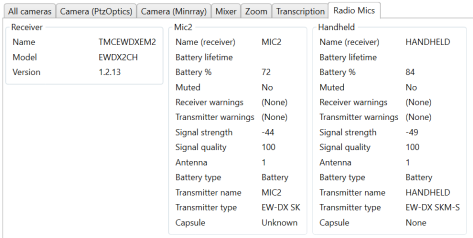

Diagnosing an ASP.NET Core hard crash

As part of my church A/V system (At Your Service), I run a separate local web server to interact with the Zoom SDK. Initially this was because the Zoom SDK would only run in 32-bit processes and I needed a 64-bit process to handle the memory requirements for the rest of the app. However, it’s also proven useful in terms of keeping the Zoom meeting for a church service alive if At Your Service crashes. Obviously I try hard to avoid that happening, but when interoperating with a lot of native code (LibVLC, NDI, the Stream Deck, PowerPoint via COM) there are quite a few avenues for crashes. The web server runs ASP.NET Core within a WPF application to make it easy to interact with logs while it’s running, and to give the Zoom SDK a normal event dispatcher.

Yesterday when trying to change my error handling code significantly, I found that the web server was crashing hard, with no obvious trace of what’s going on. I’ve already spent a little time trying to figure out what’s going on, but I couldn’t get to the bottom of it. I know the immediate cause of the crash, and I’ve fixed that fairly easily – but I want to harden the web server against any further bugs I might introduce. I figured it would be useful to blog about that process as I went along.

What I know so far

The immediate crash was due to an exception being thrown in an async void method.

Relevant threading aspects:

  • I start the ASP.NET Core app in a separate thread (although that’s probably unnecessary anyway, now that I think about it) calling IHost.Start
  • I have handlers for Dispatcher.UnhandledException and TaskScheduler.UnobservedTaskException
  • I execute all Zoom-specific code on the WPF Dispatcher thread

The immediate error came from code like the following. You can ignore the way this effectively reproduces Web API to some extent… it’s the method body that’s important.

public abstract class CommandBase<TRequest, TResponse> : CommandBase
{
    public override async Task HandleRequest(HttpContext context)
    {
        var reader = new StreamReader(context.Request.Body);
        var text = await reader.ReadToEndAsync();
        var request = JsonUtilities.Parse<TRequest>(text);

        var dispatcher = Application.Current.Dispatcher;
        try
        {
            var response = await dispatcher.Invoke(() => ExecuteAsync(request));
            var responseJson = JsonUtilities.ToJson(response);
            await context.Response.WriteAsync(responseJson);
        }
        catch (ZoomSdkException ex)
        {
            SetExceptionResponse(new ZoomExceptionResponse { /* More info here */ });
        }

        async void SetExceptionResponse(ZoomExceptionResponse response)
        {
            var responseJson = JsonUtilities.ToJson(response);
            await context.Response.WriteAsync(responseJson);
            context.Response.StatusCode = 500;
        }
    }

    public abstract Task<TResponse> ExecuteAsync(TRequest request);
}

There are at least three problems here:

  • I’m trying to set HttpResponse.StatusCode after writing the body
  • The SetExceptionResponse method is async void (generally a bad idea)
  • I’m not awaiting the call to SetExceptionResponse (which I can’t, due to it returning void)

(It’s also a bit pointless having a local method there. This code could do with being rewritten when I don’t have Covid brain fog, but hey…)

The first of these causes an InvalidOperationException to be thrown. The second and third, between them, cause the app to crash. The debugger has been no help here in working out what’s going on.

Create with a console app to start ASP.NET Core

It feels like this should be really easy to demonstrate in a simple console app that does nothing but start a web server which fails in this particular way.

At this stage I should say how much I love the new top-level statements in C# 10. They make simple complete examples an absolute joy. So let’s create a console app, change the Sdk attribute in the project file to Microsoft.NET.Sdk.Web, and see what we can do. I’m aware that with ASP.NET Core 6 there are probably even simpler ways of starting the server, but this will do for now:

using System.Net;

var host = Host.CreateDefaultBuilder()
    .ConfigureWebHostDefaults(builder => builder
        .ConfigureKestrel((context, options) => options.Listen(IPAddress.Loopback, 8080))
        .Configure(application => application.Run(HandleRequest)))
    .Build();
host.Start();
host.WaitForShutdown();

async Task HandleRequest(HttpContext context)
{
    await context.Response.WriteAsync("Testing");
}

Trying to run that initially brought up prompts about IIS Express and trusting SSL certificates – all very normal for a regular web app, but not what I want here. After editing launchSettings.json to a simpler set of settings:

{
"profiles": {
"AspNetCoreCrash": {
"commandName": "Project"
}
}
}

… I can now start the debugger, then open up localhost:8080 and get the testing page. Great.

Reproduce the exception

Next step: make sure I can throw the InvalidOperationException in the same way as the original code. This is easy, just replacing the body of the HandlRequest method:

async Task HandleRequest(HttpContext context)
{
    await context.Response.WriteAsync("Testing");
    context.Response.StatusCode = 500;
}

Sure enough the console logs show that it’s failed as expected:

System.InvalidOperationException: StatusCode cannot be set because the response has already started.
  at Microsoft.AspNetCore.Server.Kestrel.Core.Internal.Http.HttpProtocol.ThrowResponseAlreadyStartedException(String value)
  at Microsoft.AspNetCore.Server.Kestrel.Core.Internal.Http.HttpProtocol.set_StatusCode(Int32 value)
  at Microsoft.AspNetCore.Server.Kestrel.Core.Internal.Http.HttpProtocol.Microsoft.AspNetCore.Http.Features.IHttpResponseFeature.set_StatusCode(Int32 value)
  at Microsoft.AspNetCore.Http.DefaultHttpResponse.set_StatusCode(Int32 value)
  at Program.<<Main>$>g__HandleRequest|0_1(HttpContext context) in C:\users\skeet\GitHub\jskeet\DemoCode\AspNetCoreCrash\Program.cs:line 19
  at Microsoft.WebTools.BrowserLink.Net.BrowserLinkMiddleware.ExecuteWithFilterAsync(IHttpSocketAdapter injectScriptSocket, String requestId, HttpContext httpContext)
  at Microsoft.AspNetCore.Watch.BrowserRefresh.BrowserRefreshMiddleware.InvokeAsync(HttpContext context)
  at Microsoft.AspNetCore.Server.Kestrel.Core.Internal.Http.HttpProtocol.ProcessRequests[TContext](IHttpApplication`1 application)

… but (again, as expected) the server is still running. It’s interesting that BrowserLink occurs in the stack trace – I suspect that wouldn’t be the case in my

Let’s try making the failure occur in the same way as in At Your Service:

async Task HandleRequest(HttpContext context)
{
    // In AYS we await executing code in the dispatcher;
    // Task.Yield should take us off the synchronous path.
    await Task.Yield();
    WriteError();

    async void WriteError()
    {
        await context.Response.WriteAsync("Testing");
        context.Response.StatusCode = 500;
    }
}

This time we get a longer stack trace, and the process quits, just like in AYS:

System.InvalidOperationException: StatusCode cannot be set because the response has already started.
   at Microsoft.AspNetCore.Server.Kestrel.Core.Internal.Http.HttpProtocol.ThrowResponseAlreadyStartedException(String value)
   at Microsoft.AspNetCore.Server.Kestrel.Core.Internal.Http.HttpProtocol.set_StatusCode(Int32 value)
   at Microsoft.AspNetCore.Server.Kestrel.Core.Internal.Http.HttpProtocol.Microsoft.AspNetCore.Http.Features.IHttpResponseFeature.set_StatusCode(Int32 value)
   at Microsoft.AspNetCore.Http.DefaultHttpResponse.set_StatusCode(Int32 value)
   at Program.c__DisplayClass0_0.<<<Main>$>g__WriteError|4>d.MoveNext() in C:\users\skeet\GitHub\jskeet\DemoCode\AspNetCoreCrash\Program.cs:line 19
--- End of stack trace from previous location ---
   at System.Threading.Tasks.Task.c.b__128_1(Object state)
   at System.Threading.QueueUserWorkItemCallback.c.b__6_0(QueueUserWorkItemCallback quwi)
   at System.Threading.ExecutionContext.RunForThreadPoolUnsafe[TState](ExecutionContext executionContext, Action`1 callback, TState& state)
   at System.Threading.QueueUserWorkItemCallback.Execute()
   at System.Threading.ThreadPoolWorkQueue.Dispatch()
   at System.Threading.PortableThreadPool.WorkerThread.WorkerThreadStart()
   at System.Threading.Thread.StartCallback()

This happens in both the debugger and when running from the command line.

Setting a break point in the WriteError method shows a stack trace like this:

   at System.Runtime.CompilerServices.AsyncMethodBuilderCore.Start[TStateMachine](TStateMachine& stateMachine)
   at Program.c__DisplayClass0_0.<<Main>$>g__WriteError|4()
   at Program.<<Main>$>g__HandleRequest|0_1(HttpContext context) in C:\users\skeet\GitHub\jskeet\DemoCode\AspNetCoreCrash\Program.cs:line 14
   at System.Runtime.CompilerServices.AsyncTaskMethodBuilder`1.AsyncStateMachineBox`1.ExecutionContextCallback(Object s)
   at System.Threading.ExecutionContext.RunInternal(ExecutionContext executionContext, ContextCallback callback, Object state)
   at System.Runtime.CompilerServices.AsyncTaskMethodBuilder`1.AsyncStateMachineBox`1.MoveNext(Thread threadPoolThread)
   at System.Runtime.CompilerServices.AsyncTaskMethodBuilder`1.AsyncStateMachineBox`1.MoveNext()
   at System.Runtime.CompilerServices.YieldAwaitable.YieldAwaiter.c.b__6_0(Action innerContinuation, Task continuationIdTask)
   at System.Runtime.CompilerServices.AsyncMethodBuilderCore.ContinuationWrapper.Invoke()
   at System.Runtime.CompilerServices.YieldAwaitable.YieldAwaiter.RunAction(Object state)
   at System.Threading.QueueUserWorkItemCallbackDefaultContext.Execute()
   at System.Threading.ThreadPoolWorkQueue.Dispatch()
   at System.Threading.PortableThreadPool.WorkerThread.WorkerThreadStart()
   at System.Threading.Thread.StartCallback()

There’s nothing about ASP.NET Core in there at all… so I wonder if we can take that out of the equation too?

Reproducing the crash in a pure console app

To recap, I’m expecting at this stage that to reproduce the crash I should:

  • Write an async void method that throws an exception
  • Call that method from a regular async method

Let’s try:

#pragma warning disable CS1998 // Async method lacks 'await' operators and will run synchronously
await NormalAsyncMethod();
Console.WriteLine("Done");

async Task NormalAsyncMethod()
{
    await Task.Yield();
    Console.WriteLine("Start ofNormalAsyncMethod");
    BrokenAsyncMethod();
    Console.WriteLine("End of NormalAsyncMethod");
}

async void BrokenAsyncMethod()
{
    await Task.Yield();
    throw new Exception("Bang");
}

Hmm. That exits normally:

$ dotnet run
Start ofNormalAsyncMethod
End of NormalAsyncMethod
Done

But maybe there’s a race condition between the main thread finishing and the problem crashing the process? Let’s add a simple sleep:

#pragma warning disable CS1998 // Async method lacks 'await' operators and will run synchronously
await NormalAsyncMethod();
Thread.Sleep(1000);
Console.WriteLine("Done");
// Remainder of code as before

Yup, this time it crashes hard:

Start ofNormalAsyncMethod
End of NormalAsyncMethod
Unhandled exception. System.Exception: Bang
   at Program.<<Main>$>g__BrokenAsyncMethod|0_1() in C:\users\skeet\GitHub\jskeet\DemoCode\AspNetCoreCrash\ConsoleCrash\Program.cs:line 15
   at System.Threading.Tasks.Task.<>c.<ThrowAsync>b__128_1(Object state)
   at System.Threading.QueueUserWorkItemCallbackDefaultContext.Execute()
   at System.Threading.ThreadPoolWorkQueue.Dispatch()
   at System.Threading.PortableThreadPool.WorkerThread.WorkerThreadStart()
   at System.Threading.Thread.StartCallback()

Interlude: what about async Task?

At this point I’m remembering some of what I’ve learned about how async void methods handle exceptions. What happens if we turn it into an async Task method instead? At that point, the Task returned by the method (which we ignore) will have the exception, and as by default unobserved task exceptions no longer crash the process, maybe we’ll be okay. So just changing BrokenAsyncMethod to:

async Task BrokenAsyncMethod()
{
    throw new Exception("Bang");
}

(and ignoring the warning at the call site)… the program no longer crashes. (I could subscribe to TaskScheduler.UnobservedTaskException but I’m not that bothered… I’m pretty convinced it would fire, at least eventually.)

Do all ThreadPool exceptions crash the app?

We don’t need to use async methods to execute code on the thread pool. What happens if we just write a method which throws an exception, and call that from the thread pool?

ThreadPool.QueueUserWorkItem(ThrowException);
Thread.Sleep(1000);
Console.WriteLine("Done");

void ThrowException(object? state)
{
    throw new Exception("Bang!");
}

Yup, that crashes:

Unhandled exception. System.Exception: Bang!
   at Program.<<Main>$>g__ThrowException|0_0(Object state) in C:\users\skeet\GitHub\jskeet\DemoCode\AspNetCoreCrash\ConsoleCrash\Program.cs:line 7
   at System.Threading.QueueUserWorkItemCallbackDefaultContext.Execute()
   at System.Threading.ThreadPoolWorkQueue.Dispatch()
   at System.Threading.PortableThreadPool.WorkerThread.WorkerThreadStart()
   at System.Threading.Thread.StartCallback()

At this point some readers (if there still are any…) may be surprised that this is a surprise to me. It’s been a long time since I’ve interacted with the thread pool directly, and taking down the process like this feels a little harsh to me. (There are pros and cons, certainly. I’m not trying to argue that Microsoft made the wrong decision here.)

Can we change the ThreadPool behaviour?

Given that we have things like TaskScheduler.UnobservedTaskException, I’d expect there to be something similar for the thread pool… but I can’t see anything. It looks like this is behaviour that changed with .NET 2.0 – back in 1.x, thread pool exceptions didn’t tear down the application.

After a bit more research, I found AppDomain.UnhandledException. This allows us to react to an exception that’s about to take down the application, but it doesn’t let us mark it as “handled”.

Here’s an example:

AppDomain.CurrentDomain.UnhandledException += (sender, args) =>
    Console.WriteLine($"Unhandled exception: {((Exception)args.ExceptionObject).Message}");
ThreadPool.QueueUserWorkItem(ThrowException);
Thread.Sleep(1000);
Console.WriteLine("Done");

void ThrowException(object? state) =>
    throw new Exception("Bang!");

Running this code a few times, I always get output like this:

Unhandled exception: Bang!
Unhandled exception. System.Exception: Bang!
   at Program.<<Main>$>g__ThrowException|0_1(Object state) in C:\users\skeet\GitHub\jskeet\DemoCode\AspNetCoreCrash\ConsoleCrash\Program.cs:line 8
   at System.Threading.QueueUserWorkItemCallbackDefaultContext.Execute()
   at System.Threading.ThreadPoolWorkQueue.Dispatch()
   at System.Threading.PortableThreadPool.WorkerThread.WorkerThreadStart()
   at System.Threading.Thread.StartCallback()

… but sometimes “Done” is printed too. So I guess there’s some uncertainty about how quickly the AppDomain is torn down.

Hardening At Your Service

Given what I know now, I don’t think I can easily stop the web server for Zoom interactions from terminating if I have a bug – but I can make it easier to find that bug afterwards. I already normally write the log out to a text file when the app exits, but that only happens for an orderly shutdown.

Fortunately, it looks like the AppDomain.UnhandledException is given enough time to write the log out before the process terminates. Temporarily reverting to the broken code allows me to test that – and yes, I get a log with an appropriate critical error.

Conclusion

I knew that async void methods were generally bad, but I hadn’t quite appreciated how dangerous they are, particularly when executed from a thread pool thread.

While I’m not thrilled with the final result, I at least understand it now, and can find similar errors more easily in the future. The “not understanding” part was the main motivation for this blog post – given that I’d already found the immediate bug, I could have just fixed it and ignored the worrying lack of diagnostic information… but I always find it tremendously unsettling when I can’t explain significant behaviour. It’s not always worth investigating immediately but it’s generally useful to come back to it later on and keep diving deeper until you’ve got to the bottom of it.

I haven’t put the source code for this blog post in GitHub as there are so many iterations – and because it’s all in the post itself. Shout if you would find it valuable, and I’m happy to add it after all.

Displaying NDI sources on Stream Decks

In the course of my work on our local church A/V system, I’ve spent quite a lot of time playing with Elgato Stream Decks and NDI cameras. It only occurred to me a week or so ago that it would be fun to combine them.

The Stream Deck screens are remarkably capable – they’re 96×96 or 72×72 pixels (depending on the model) and appear to have a decent refresh rate. I tend to think of them just in terms of displaying simple icons or text, but I’d already seen a video of a Stream Deck displaying a video so it wasn’t too much of a leap to display live camera outputs instead.

I should make it clear that I had absolutely no practical reason for doing this – although as it happens, the local tweaks I’ve made to the C# NDI SDK have proved useful in At Your Service for enabling a preview camera view without opening a second NDI network stream.

Tweaking the NDI SDK

The NDI SDK comes with a demo C# sample library. It’s not clear how much this is intended to be for production use, but we’ve been using it in At Your Service for quite a while with very few issues. (We’re pinned at a slightly old version of the runtime due to some smoothness issues with later versions, which I’m hoping the NDI folks will sort out at some point – I’ve given them a diagnostic program to show the issues.)

The SDK comes with a WPF “receive view” which displays a camera in a WPF control, as you’d expect. Now I don’t know enough about WPF to try to use the Stream Deck as an output device for WPF directly. It may be feasible, but it’s beyond my current skillset. However, I was able to reuse parts of the receive view to create a new “display-agnostic” class, effectively just dealing with the fiddly bits of the NDI interop layer and providing video frames (already marshalled to the dispatcher thread) as raw data via an event handler. Multiple consumers can then subscribe to that event and process the frames as they wish – in this case, drawing them to the Stream Deck, but potentially delivering them to multiple displays at the same time.

The simplest image processing imaginable

So, the frames are being delivered to my app in a raw 4-bytes-per-pixel format. How do we draw them on the Stream Deck? I’ve been using StreamDeckSharp which is has been pretty simple and reliable. It has multiple ways of drawing on buttons, but the one we’re interested in here is passing in raw byte arrays in a 3-bytes-per-pixel format. (As it happens, the Stream Deck SDK then needs to encode each frame on each button as a JPEG. It’s a pity that the data can’t be transferred to the Stream Deck in raw form, but hey.) All we need to do is scale the image appropriately.

Again, there may be better ways of doing this, such as asking WPF to write the full frame to a Graphics and performing appropriate resizing along the way. But I figured I’d start off with something simpler – and it turned out to be perfectly adequate. I’m not massively concerned with obtaining the absolute best quality image possible, so rather than using all the pixels and blending them appropriately, I’m just taking a sampling approach: if I’m displaying the original 1920×1080 image on a 96×96 button, I’ll just take 96×96 pixel values with as simple code as I could work out.

In the end, I decided to stick to integer scaling factors and just center the image. So to take the above example, 1080/96 is 11.25, so I take samples that are 11 pixels apart in the original image, trimming the top/bottom borders a little bit (because of the truncation from 11.25 to 11) and the left/right borders a lot (because the buttons are square, and it’s better to crop the image than to letter-box it). What happens if you’ve got an image which is just white dots that are 11 pixels apart, and black everywhere else? You end up with a white image (assuming the dots are aligned with the sampling) – but in a camera image, that doesn’t really happen.

The maths ends up being slightly more fiddly when displaying a frame across several buttons. There are are gaps between the buttons, and while we could just ignore them, it looks very weird if you do – if a straight line crosses multiple buttons, it ends up looking “broken” due to the gap, for example. Instead, if we take the gaps into account as if we were drawing them, it looks fine. The arithmetic here isn’t actually hard in any sense of the word – but it still took me a few goes to get right.

Putting it together

Of course, Stream Deck buttons aren’t just screens: they’re pressable buttons as well. I haven’t gone to down on the user interface here: the left-most column just buttons just displays the NDI sources, and pressing one of those buttons displays that source on the rest of the buttons. That part was really simple – as you’d probably expect it to be.

The initial prototype took about two or three hours to write (bearing in mind I already had experience with both the NDI code and the Stream Deck SDK), and then it took another couple of hours to polish it up a bit and get it ready for publication. The application code is all available on my DemoCode GitHub repository; unfortunately even if you happen to have an NDI camera and a Stream Deck, you won’t be able to use it without my tweaks to the NDI C# code. (If the C# part of the NDI SDK is ever made open source, I’ll happily fork it and include my tweaks there.)

I’ve put a YouTube video of the results. Hope you enjoy them. I’ve had a lot of fun with this project, despite the lack of practical applications for it.

Diagnosing a VISCA camera issue

As I have mentioned before, I’ve been spending a lot of time over the last two years writing code for my local church’s A/V system. (Indeed, I’ve been giving quite a few user group talks recently about the fun I’ve had doing so.) That new A/V system is called “At Your Service”, or AYS for short. I only mention that because it’s simpler to refer to AYS for the rest of this post than “the A/V app”.

Our church now uses three cameras from PTZOptics. They’re all effectively the same model: 30x optical Zoom, Power over Ethernet, with NDI support (which I use for the actual video capture – more about that in a subsequent blog post). I control the cameras using VISCA over TCP/IP, as I’ve blogged about before. At home I have one PTZOptics camera (again, basically the same camera) and a Minrray UV5120A – also 30x optical zoom with NDI support.

Very occasionally, the cameras run into problems: sometimes the VISCA interface comes up, but there’s no NDI stream; sometimes the camera just doesn’t stop panning after I move it. In the early days, when I would only send a VISCA command when I wanted to actually do something, I believe the TCP/IP connection was closed automatically after being idle for an hour.

For these reasons, I now have two connections per camera:

  • One for the main control, which includes a “heartbeat” command of “get current pan/tilt/zoom” issued every three minutes.
  • One for frequent status checking, so that we can tell if the camera itself is online even if the main control connection ends up causing problems. This sends a “get power status” every 5 seconds.

If anything goes wrong, the user can remotely reboot the camera (which creates a whole new TCP/IP connection just in case the existing ones are broken; obviously this doesn’t help if the camera is completely failing in network terms).

This all works pretty well – but my logs sometimes show an error response from the camera – equivalent to an HTTP 400, basically saying “the VISCA command you sent has incorrect syntax”. Yesterday I decided to dedicate some time to working out what was going on, and that’s the topic of this blog post. The actual problem isn’t terribly important – I’d be surprised if more than a handful of readers (if any!) faced the same issue. But I’m always interested in the diagnostic process.

Hack AYS to add more stress

I started off by modifying AYS to make it send more commands to the camera, in two different ways:

  • I modified the frequency of the status check and heartbeat
  • I made each of those also send 100 commands instead of just one
    • First sending the 100 commands one at a time
    • Then changed to sending them as 100 tasks started at the same time and then awaited as a bunch

This increased the rate of error – but not in any nicely reproducible way.

Looking back, I probably shouldn’t have started here. AYS does a lot of other stuff, including quite a lot of initialization on startup (VLC, OBS, Zoom) which makes the feedback loop a lot slower when experimenting. I needed something that was dedicated to just provoking the problem.

Create a dedicated stress test app

It’s worth noting at this point that I’ve got a library (source here) that I’m using to handle the TCP connections and send the commands. This keeps all the knowledge of exactly how VISCA works away from AYS, and makes it reasonably easy to write test code separately from the app. However, it does mean that when something goes wrong, my first expectation is that this is a problem in the library. I always assume my own code is broken before placing the blame elsewhere… and usually that assumption is well-founded.

Despite the changes to AYS not provoking things as much as I’d expected, I still thought concurrency would be the key. How could we overload the camera?

I wrote a simple stress test app to send lots of simple “get power status” requests at the camera, from multiple tasks, and record the number of successful commands vs ones which failed for various different reasons (camera responded with an error; camera violated VISCA itself; command timed out). Initially, I found that some tasks had issued far more requests than others – this turned out to be due to the way that the thread pool (used by tasks in a console app) starts small and gradually expands. A significant chunk of the stress test app is given over to getting all the tasks “ready to go” and releasing them all at the same time.

The stress test app is configurable in a number of ways:

  • The camera IP address and VISCA port
  • Whether to use a single controller object (which means a single TCP connection) or one per task. (The library queues concurrent requests, so any given TCP connection only has a single active command at a time.)
  • How long each task should delay between requests
  • How long each command should wait before timing out
  • How long the test should last overall

At first, the results seemed all over the place. With a single controller, and enough of a delay (or few enough tasks) to avoid commands timing out due to the queuing, I received no errors. With multiple controllers, I saw all kinds of results – some tasks never managing a single request, others with just a few errors, and lots of timeouts.

Oh, and if I overwhelmed the camera too much, it would just reset itself during the test (which involves it tilting up to the ceiling then back down to horizontal). Not quite “halt and catch fire”, but a very physically visible indication of an error. I’m pretty confident I haven’t actually damaged the camera though, and it seems fairly reasonable for it to reset itself in the face of a sort of DoS attack like this stress test.

However, I did spot that I never had a completely clean test with more than one task. I wondered: how low could I take the load and still see problems?

Even with just two tasks, and a half second delay between attempts, I’d reliably see one task have a single error response, and the other task have a command timeout. Aha – we’re getting somewhere.

On a hunch (so often the case with diagnostics) I added console output in the catch blocks to include the time at which the exception was thrown. As I’d started to suspect, it was the very first command that failed, and it failed for both tasks. Now we’re getting somewhere.

What’s special about the first command? We’ve carefully set the system up to start all the tasks sending commands at exactly the same time (as near as the scheduler will allow, anyway) – they may well get out of sync after the first command, as different responses take slightly different lengths of time to come back, but the first commands should be sent pretty much simultaneously.

At this point, I broke out Wireshark – an excellent network protocol analyzer, allowing me to see individual TCP packets. Aside from anything else, this could help to rule out client-side issues: if the TCP packets I sent looked correct, the code sending them was irrelevant.

Sure enough, I saw:

  • Two connections being established
  • The same 5 bytes (the VISCA command: 81 09 04 00 ff) being sent on each connection in two packets about 20 microseconds apart.
  • A 4 byte response (a VISCA error: 90 60 02 ff) being sent down the first connection 10ms later
  • No data being sent down the second connection

That explained the “error on one, timeout on the other” behaviour I’d observed at the client side.

Test the other camera

Now that I could reliably reproduce the bug, I wondered – what does the Minrray camera do?

I expected it to have the same problem. I’m aware that there are a number of makes of camera that use very similar hardware – PTZOptics, Minrray, SMTAV, Zowietek for example. While they all have slightly different firmware and user interfaces, I expected that the core functionality of the camera would be common code.

I was wrong I have yet to reproduce the issue with the Minrray camera – even throwing 20 tasks at it, with only a millisecond delay between commands, I’ve seen no errors.

Report the bug

So, it looks like this may be a bug in the PTZOptics firmware. At first I was reluctant to go to the trouble of reporting the bug, given that it’s a real edge case. (I suspect relatively few people using these cameras connect more than one TCP stream to them over VISCA.) However, I received encouragement on Twitter, and I’ve had really good support experiences with PTZOptics, so I thought it worth having a go.

While my stress test app is much simpler than AYS, it’s definitely not a minimal example to demonstrate the problem. It’s 100 lines long and requires a separate library. Fortunately, all of the code for recording different kinds of failures, and starting tasks to loop for a while, etc – that’s all unnecessary when trying to just demonstrate the problem. Likewise I don’t need to worry about queuing commands on a single connection if I’m only sending a single command down each; I don’t need any of the abstraction that my library contains.

Instead, I boiled it down to this – 30 lines (of which several are comments or whitespace) that just sends two commands “nearly simultaneously” on separate connections and shows the response returned on the the first connection.

using System.Net.Sockets;

string host = "192.168.1.45";
int port = 5678;

byte[] getPowerCommand = { 0x81, 0x09, 0x04, 0x00, 0xff };

// Create two clients - these will connect immediately
var client1 = new TcpClient(host, port);
client1.NoDelay = true;
var stream1 = client1.GetStream();

var client2 = new TcpClient(host, port);
client2.NoDelay = true;
var stream2 = client2.GetStream();

// Write the "get power" command to both sockets as close to simultaneously as we can
stream1.Write(getPowerCommand);
stream2.Write(getPowerCommand);

// Read the response from the first client
var buffer = new byte[10];
int bytesRead = stream1.Read(buffer);
// Print it out in hex.
// This is an error: 90-60-02-FF
// This is success: 90-50-02-FF
Console.WriteLine(BitConverter.ToString(buffer[..bytesRead]));

// Note: this sample doesn't read from stream2, but basically when the bug strikes,
// there's nothing to read: the camera doesn't respond.

Simple but effectively – it reliably reproduces the error on the PTZOptics camera, and shows no problems on the Minrray.

I included that with the bug report, and have received a response from PTZOptics already, saying they’re looking into it. I don’t expect a new firmware version with a fix in any time soon – but I hope it might be in their next firmware update… and at least now I can test that easily.

Conclusion

This was classic diagnostic work:

  • Go from complex code to simple code
  • Try lots of configurations to try to make sense of random-looking data
  • Follow hunches and get more information
  • Use all the tools at your disposal (Wireshark in this case) to isolate the problem as far as possible
  • Once you understand the problem (even if you can’t fix it), write code designed specifically to reproduce it simply

Hope you found this as interesting as I did! Next (this weekend, hopefully): displaying the video output of these cameras on a Stream Deck…